Manual modules
When you see it
Available in every POSYMA to whoever has permission over Preferences. Only an administrator can change the business details.
Guide 1 of 5How to set the look and the landing page
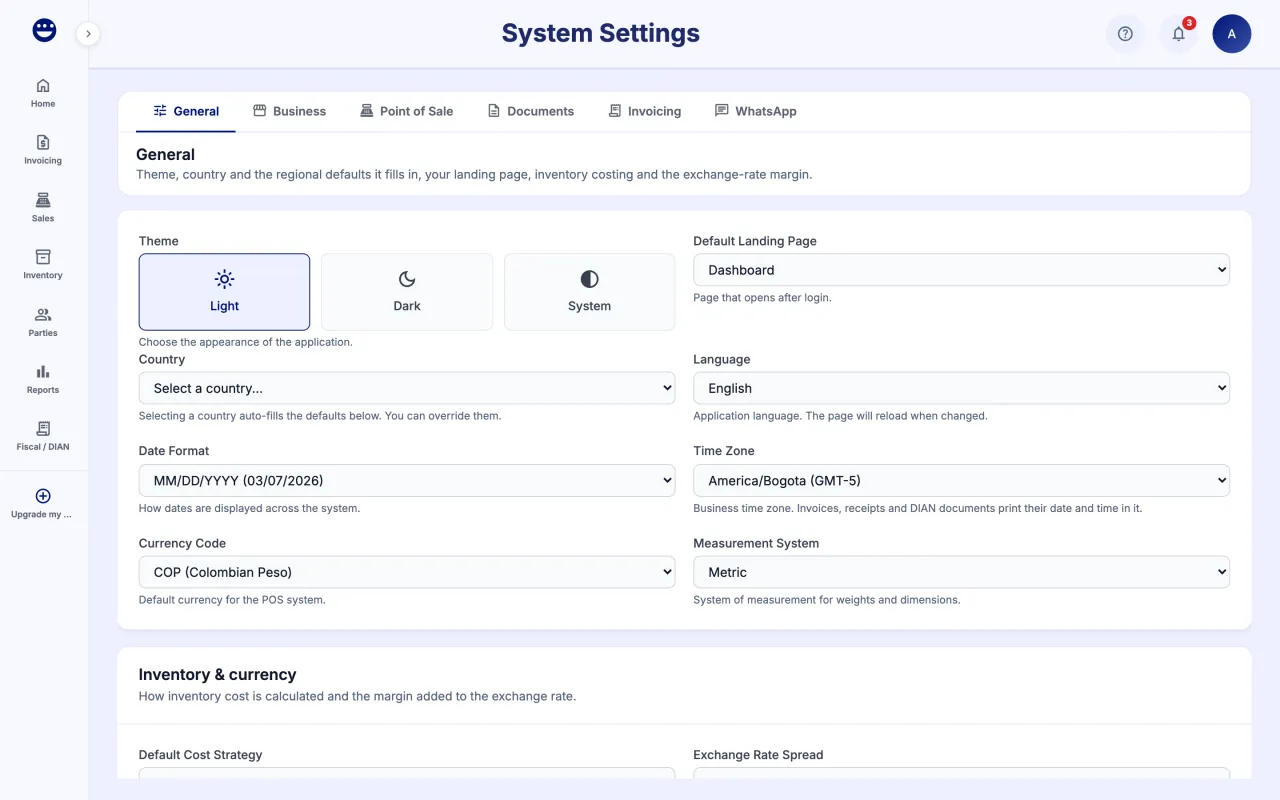
- Open Preferences, "General" tab.
- Under "Theme" pick "Light", "Dark" or "System".
- Under "Default Landing Page" choose which screen opens when you sign in. The theme and the landing page are yours: they follow you on any device you sign in from.
- Set the "Default Cost Strategy" and, if you handle other currencies, the "Exchange Rate Spread".
- Each change saves on its own.
Guide 2 of 5How to review your business details
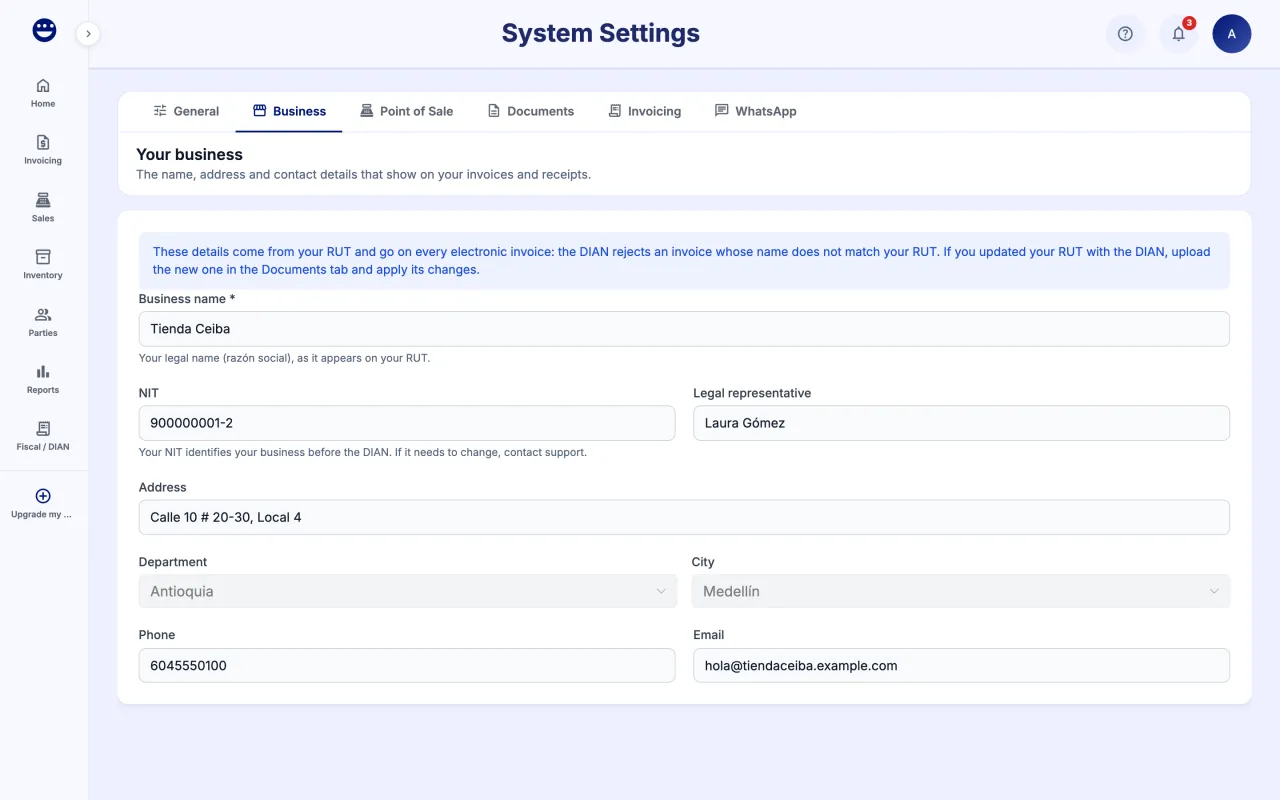
- Open the "Business" tab.
- Check "Business name", "NIT", "Legal representative", "Address", "Phone" and "Email".
- These details are read-only: they come from your RUT.
The name and NIT come from your RUT and print on every electronic invoice; the DIAN rejects an invoice whose name does not match your RUT. If you updated your RUT, upload it again under "Documents".
Guide 3 of 5How to set up the point of sale and the printer
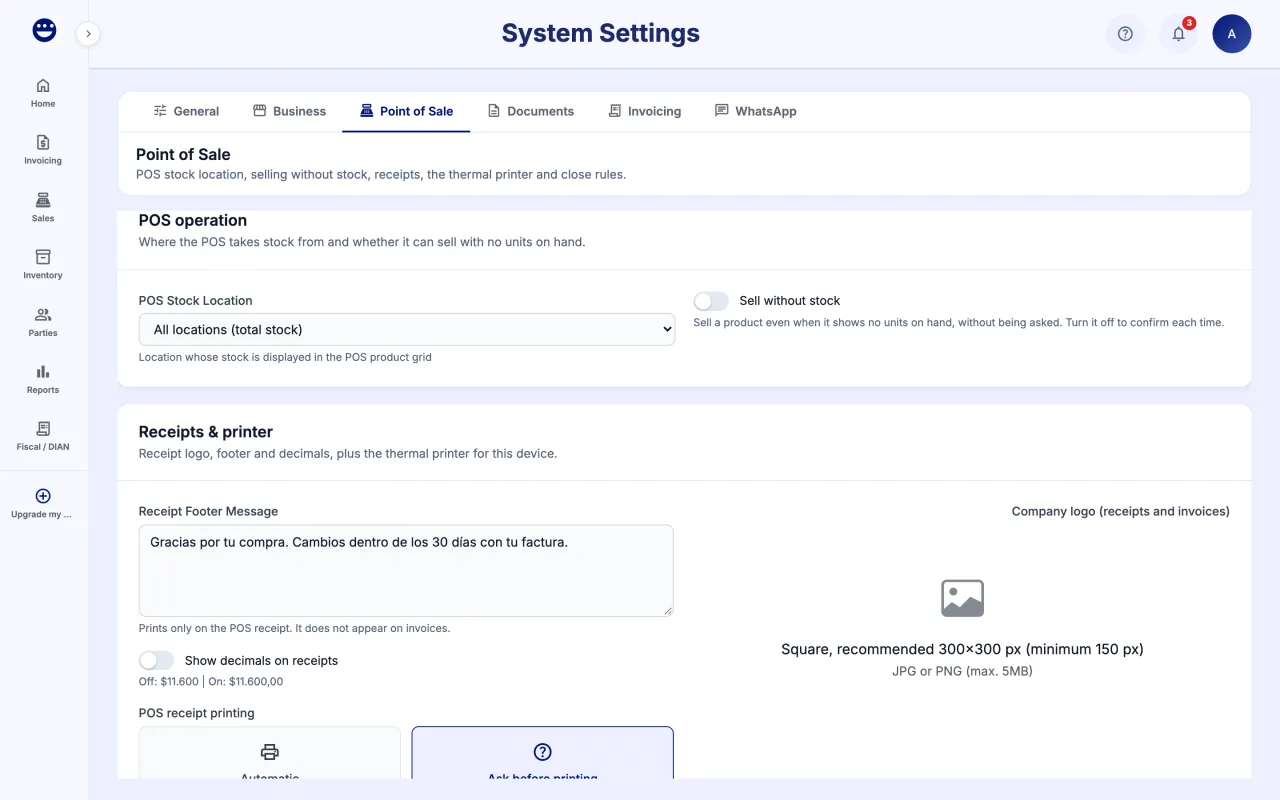
- Open the "Point of Sale" tab.
- Under "POS operation" pick the "POS Stock Location" and turn on "Sell without stock" if you do not want to be asked every time.
- Under "Receipts & printer" upload the logo, type the "Receipt Footer Message" and pick the "Receipt Paper Size" (80mm or 58mm).
- For a thermal printer on this computer, click "Connect USB" or "Connect Serial".
- Further down, under "Cash Register Close Rules", set the warning and block thresholds. They save on their own.
Direct printing works in Chrome or Edge. The printer is saved on that device.
Guide 4 of 5How to upload your legal documents
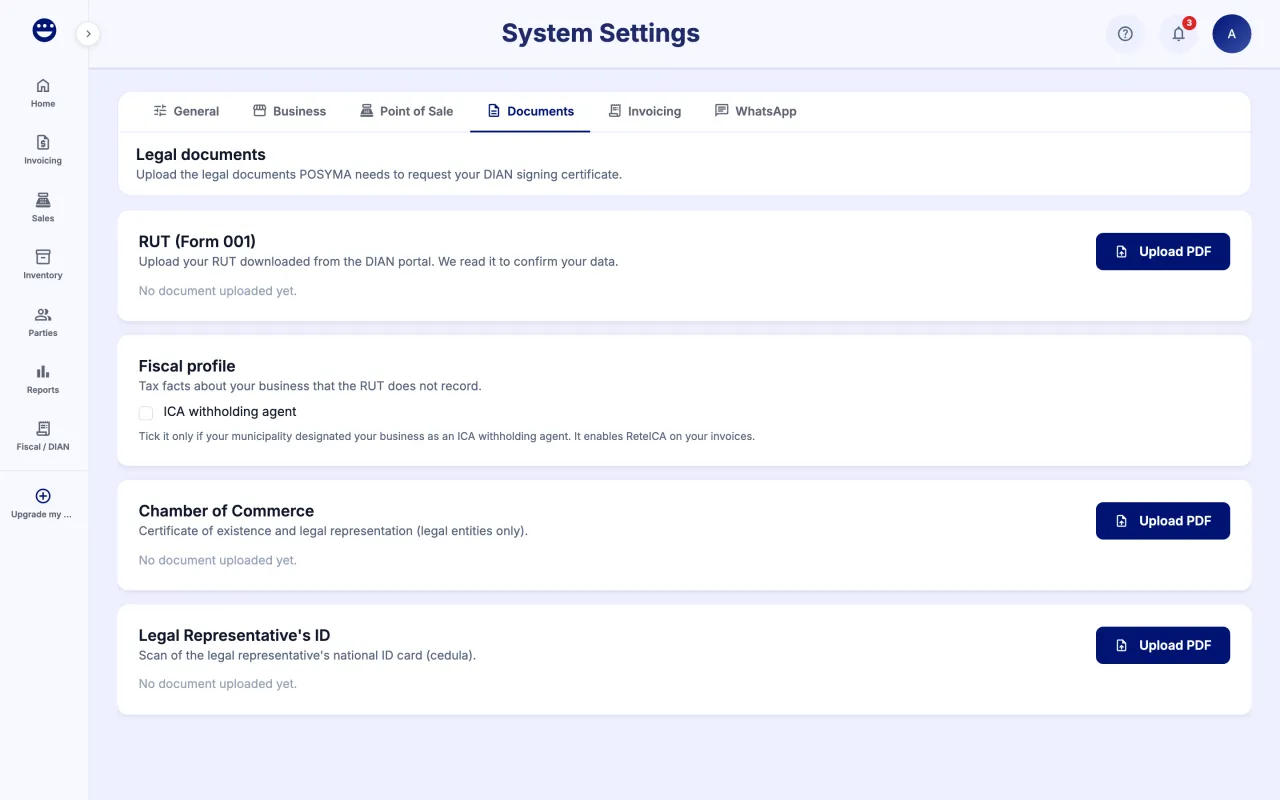
- Open the "Documents" tab. While nothing is uploaded, each card says "No document uploaded yet."
- Under "RUT (Form 001)" click "Upload PDF" and choose the RUT downloaded from the DIAN.
- If you are a company, upload the "Chamber of Commerce" certificate.
- Upload the "Legal Representative's ID". If the Chamber certificate is already uploaded, POSYMA tells you whether it "Matches the legal representative".
- If your municipality made you an ICA withholding agent, tick "ICA withholding agent" under "Fiscal profile".
Guide 5 of 5How to review numbering and invoice texts
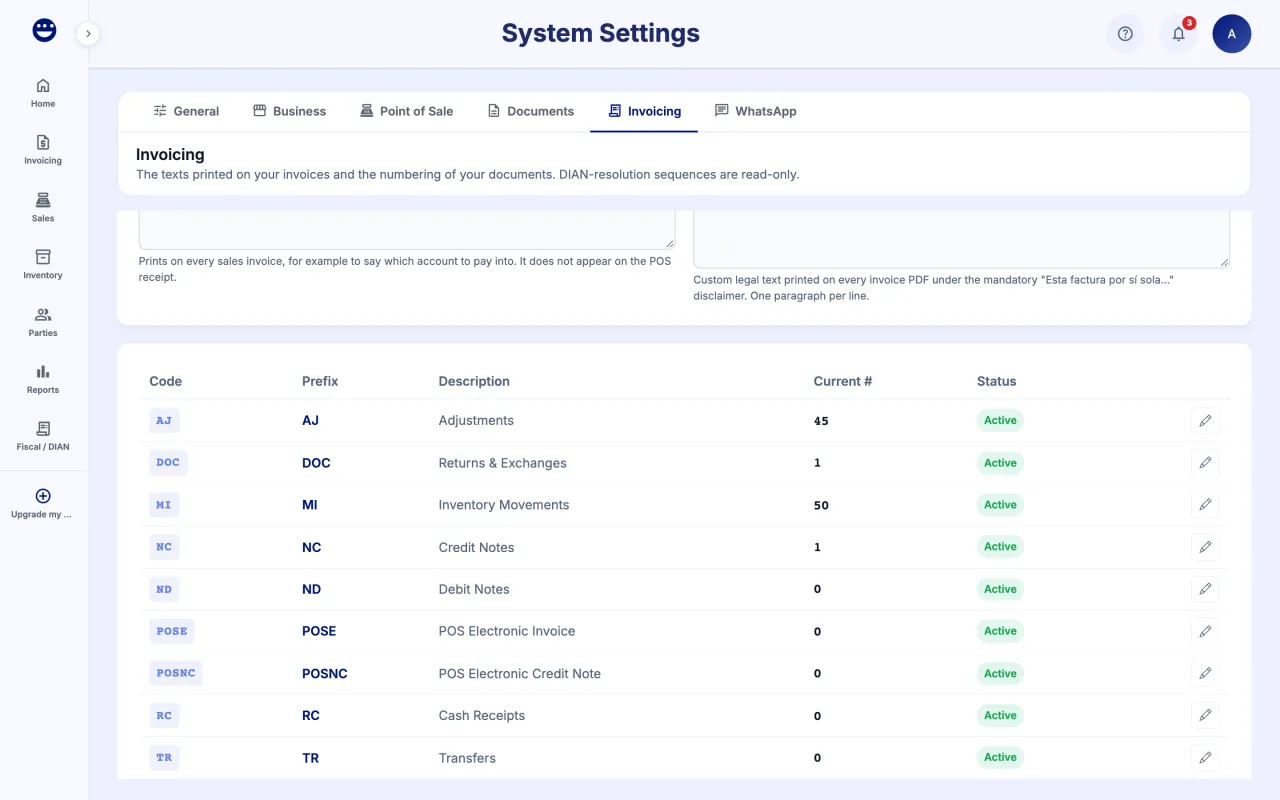
- Open the "Invoicing" tab.
- Under "Invoice texts" type the "Invoice footer note" and the "Invoice Legal Notes". These texts print on every sales invoice, never on the POS receipt.
- Under "Document Sequences" you see each document type with its "Prefix" and "Current #".
- Use the edit button to change the prefix or description of one of your own sequences and click "Save", or "Cancel" to leave it as it was.
Sequences marked "DIAN Resolution" are read-only: your invoicing resolution defines them.
Frequently asked questions
Why can I not change my business name?
Because it comes from your RUT and must match it on every invoice. If you changed your RUT with the DIAN, upload the new one in Preferences > Documents.
Does the receipt message print on the invoice?
No. The "Receipt Footer Message" prints only on the POS receipt. For invoices use the "Invoice footer note" on the Invoicing tab.