Manual modules
Guide 1 of 7How to start your shift
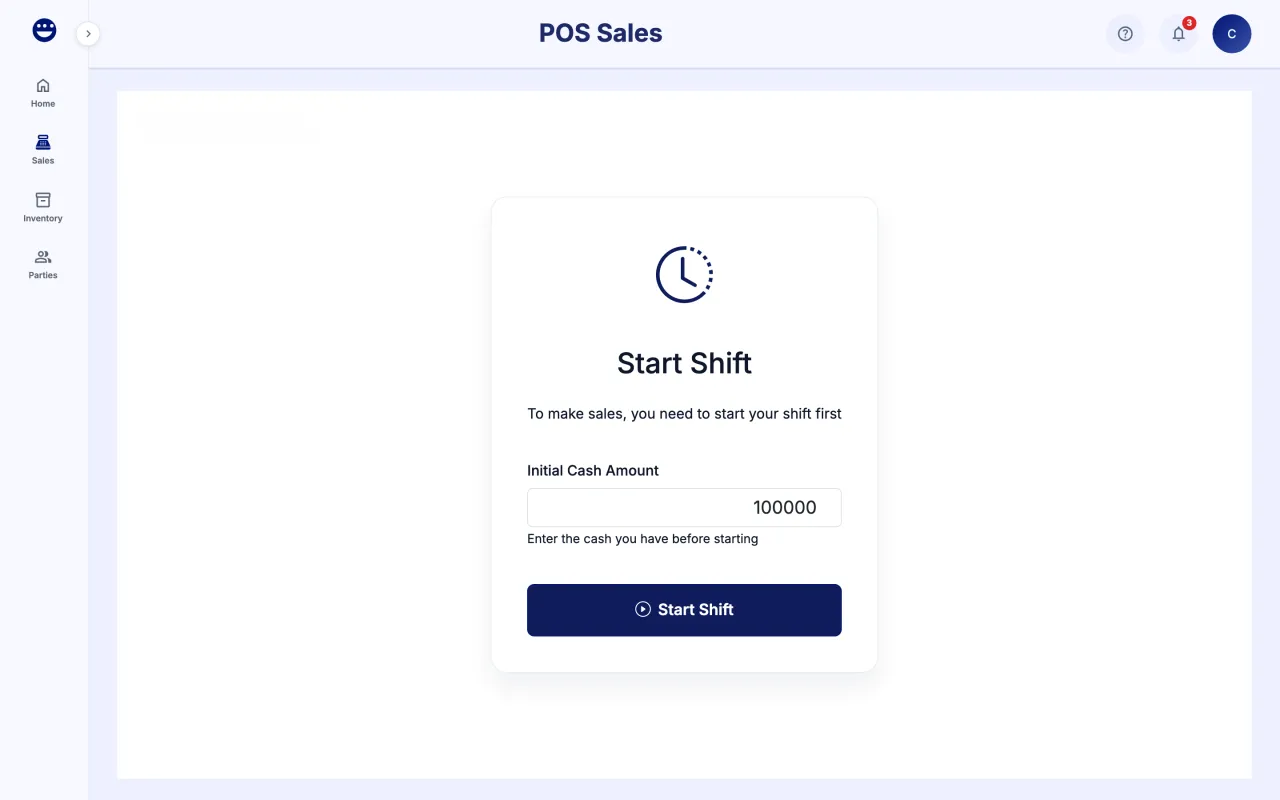
- Open Sales > Point of Sale. If you have no open shift, "Start Shift" appears.
- In "Initial Cash Amount" type the cash you have before starting.
- Click "Start Shift". The shift bar at the top shows the cashier, start time, duration and number of sales.
The shift is the same session as the Cash Register. If an administrator already opened the register for you, you go straight to the point of sale.
Guide 2 of 7How to add products and choose the customer
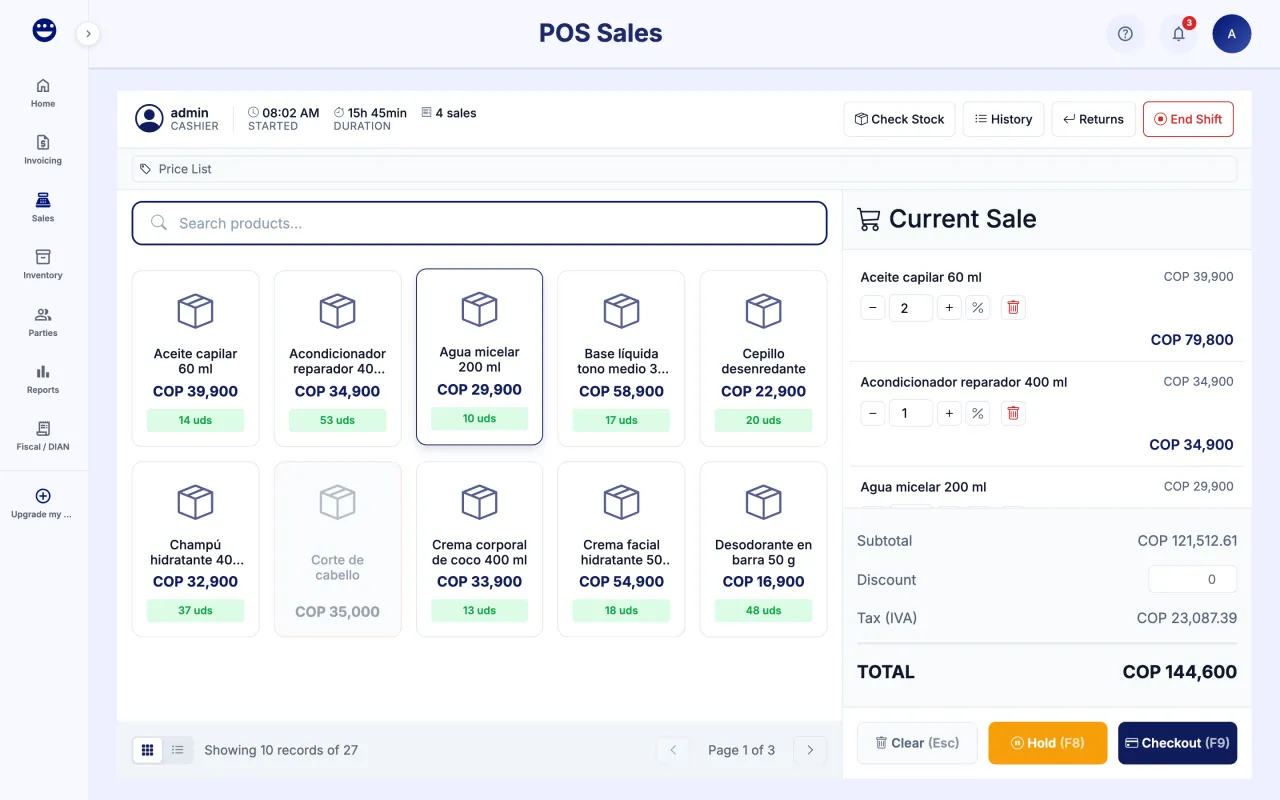
- Search in "Search products..." or scan the barcode. Click the product card to add it to the cart.
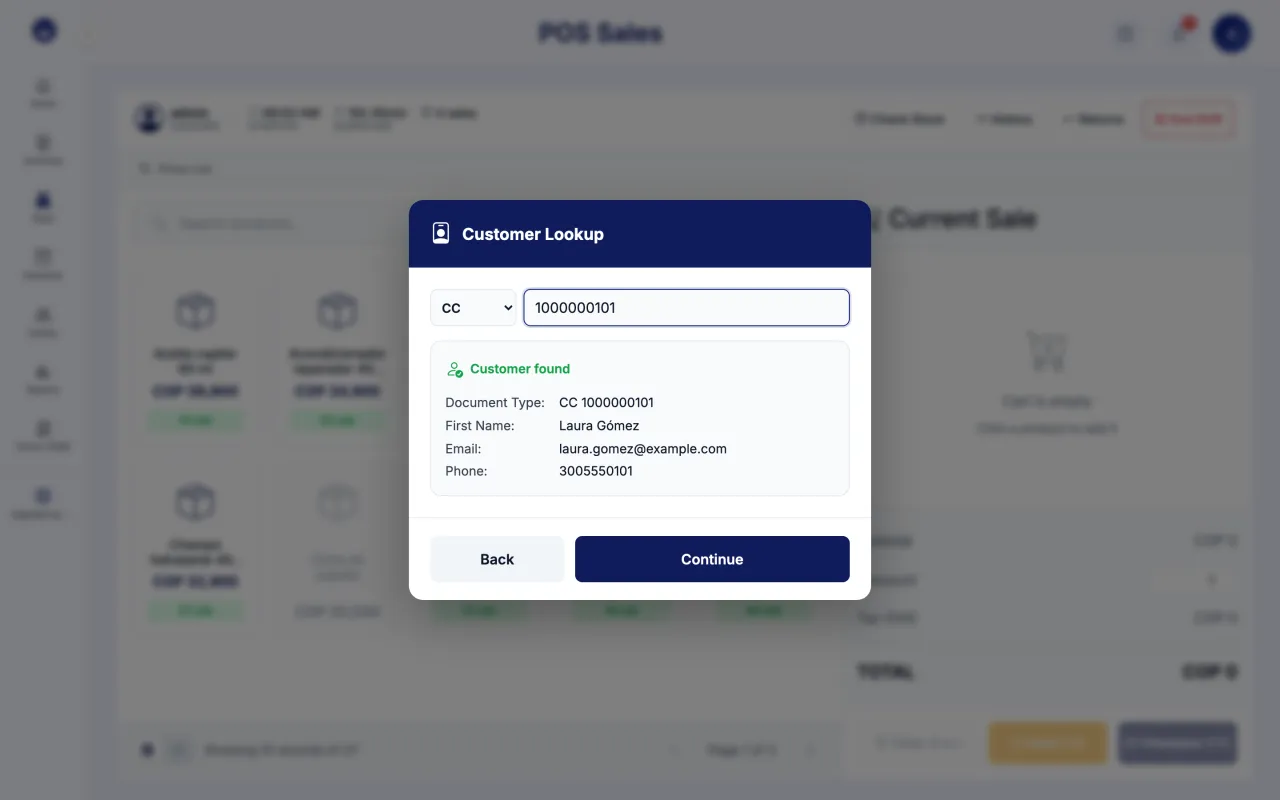
- With the first product, POSYMA asks "Does the customer want an electronic invoice?". If you answer "Yes", look the customer up by document number or create them with "Create & Continue". If you answer "No", the invoice is issued to a final consumer.
- To change the quantity, use the controls on each cart line.
- To pick or change the customer later, use "Search customer by name or doc..." in the cart.
- If the customer has a price list assigned, the cart applies it and shows how much they save.
Use "Grid view" or "List view" to see products the way you prefer. An out-of-stock product is not added when scanned.
Guide 3 of 7How to charge a sale
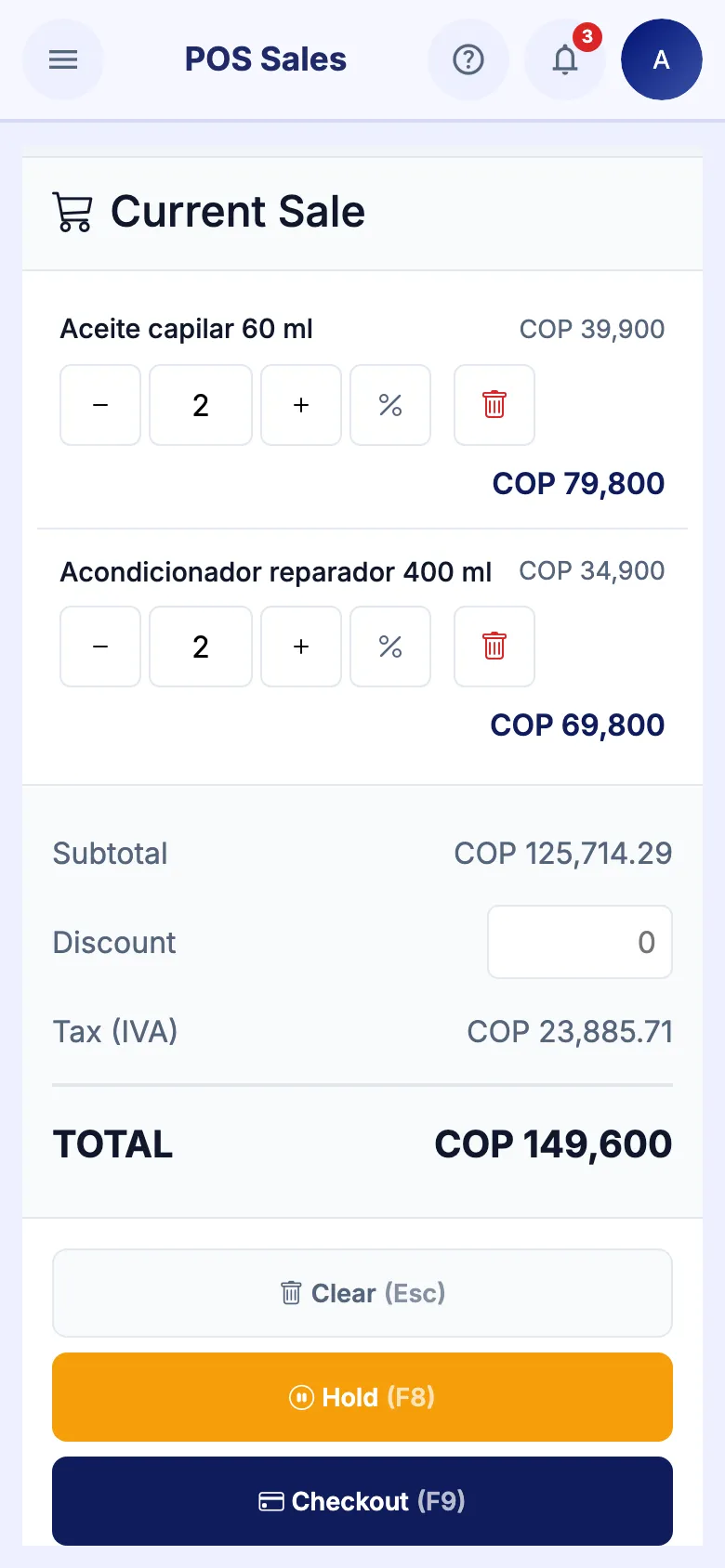
- Check the cart: subtotal, tax and total. If needed, type a "Discount" for the whole sale.
- Click "Checkout (F9)".
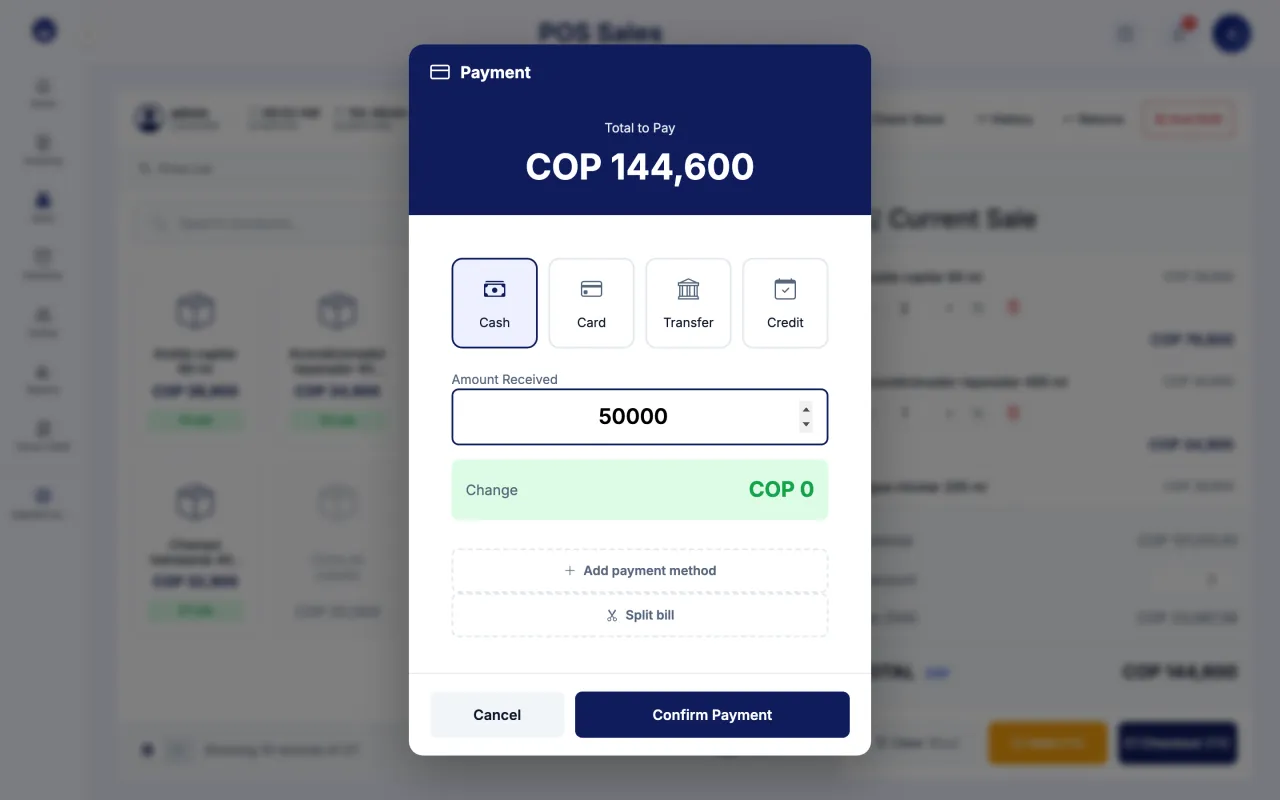
- Choose the method: "Cash", "Card", "Transfer" or "Credit".
- For cash, type the "Amount Received" and POSYMA works out the "Change". For card or transfer you can add a "Reference (optional)".
- If the customer pays with two methods, click "Add payment method" and split the total.
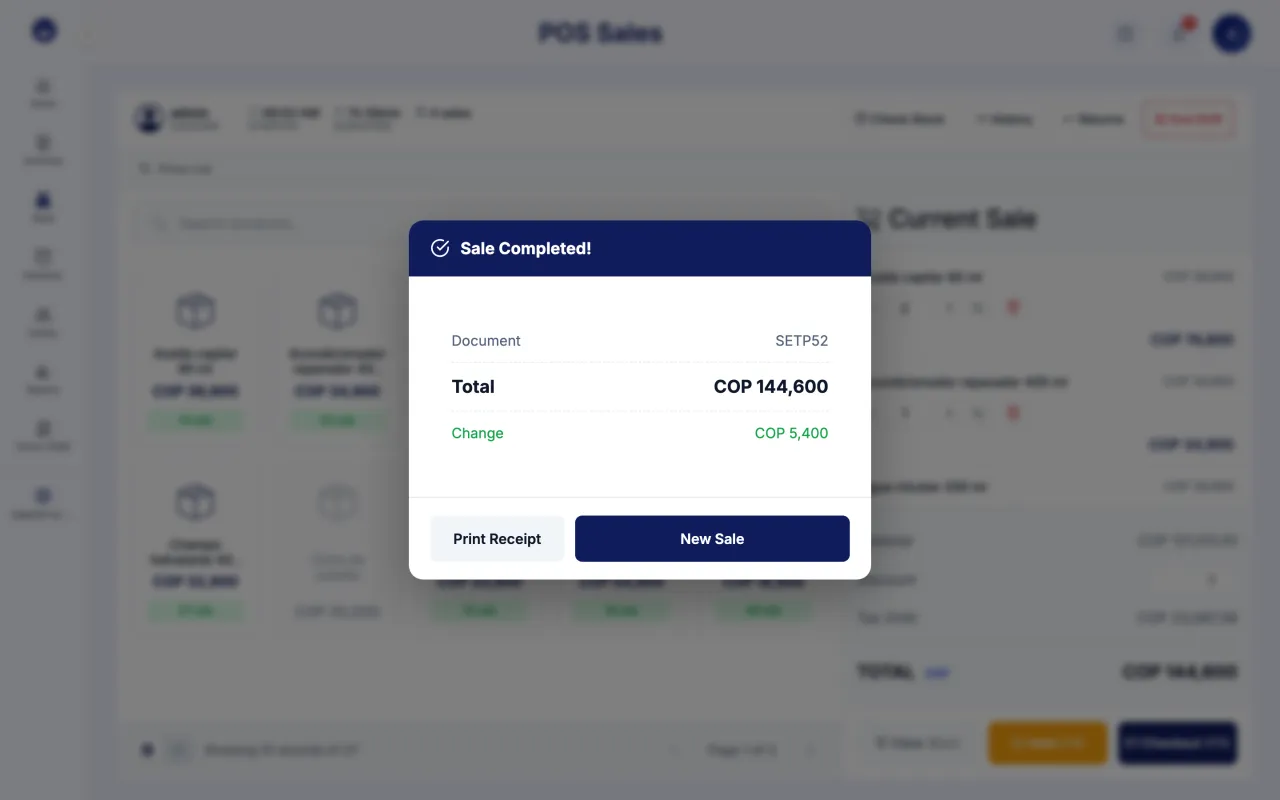
- Click "Confirm Payment". You will see "Sale Completed!" with the invoice number.
- Click "Print Receipt" if you need it, then "New Sale".
You need an active invoicing resolution to charge. If the cart warns that it is missing, use the "Numbering" button or ask an administrator to set it up.
Guide 4 of 7How to split the bill
- With the cart ready, click "Checkout (F9)".
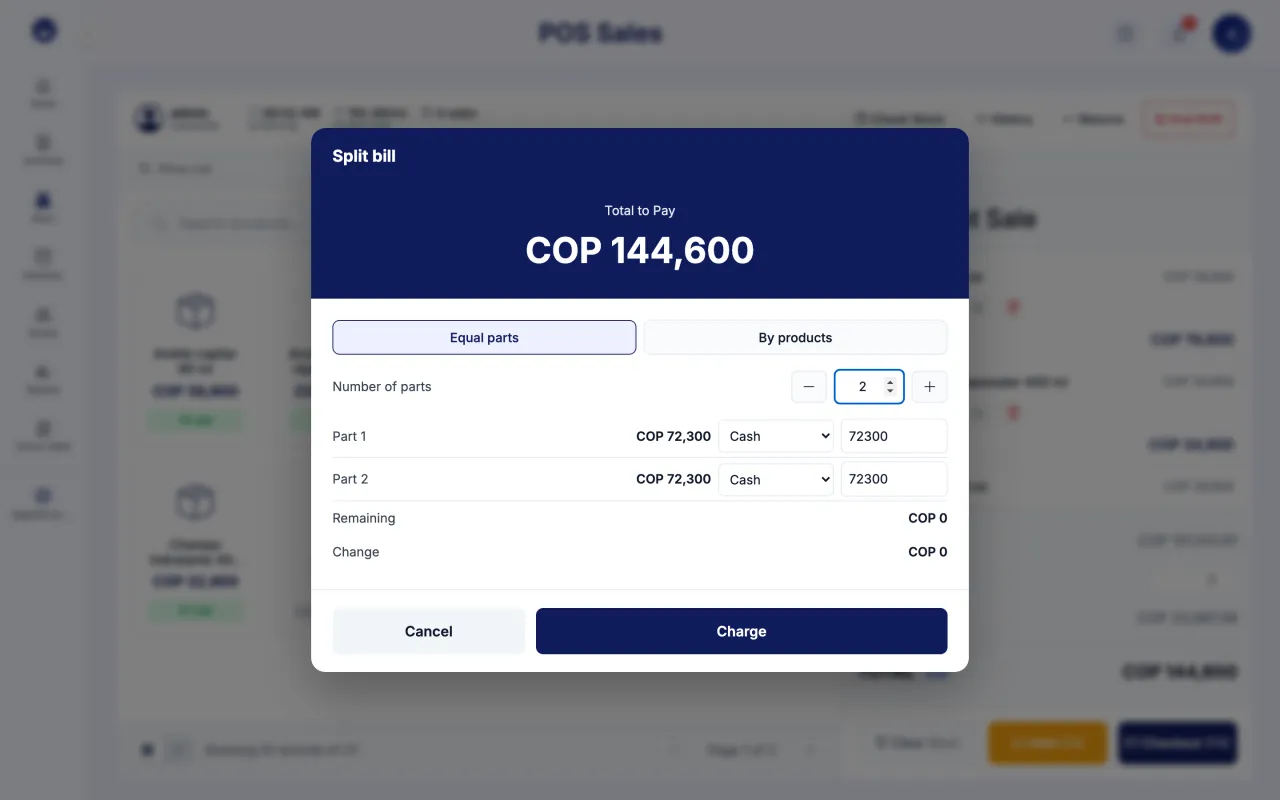
- In the payment window, click "Split bill".
- Choose "Equal parts" and set the "Number of parts", or choose "By products" and tick which products each person pays.
- For each part, choose the method and type the amount received.
- Click "Continue" and then "Charge".
Each partial payment creates its own sale document. A sale-level discount cannot be split by product: use per-item discounts.
Guide 5 of 7How to sell on credit
- First, in Parties, open the customer and tick "Allow POS credit".
- At the point of sale, build the cart and click "Checkout (F9)".
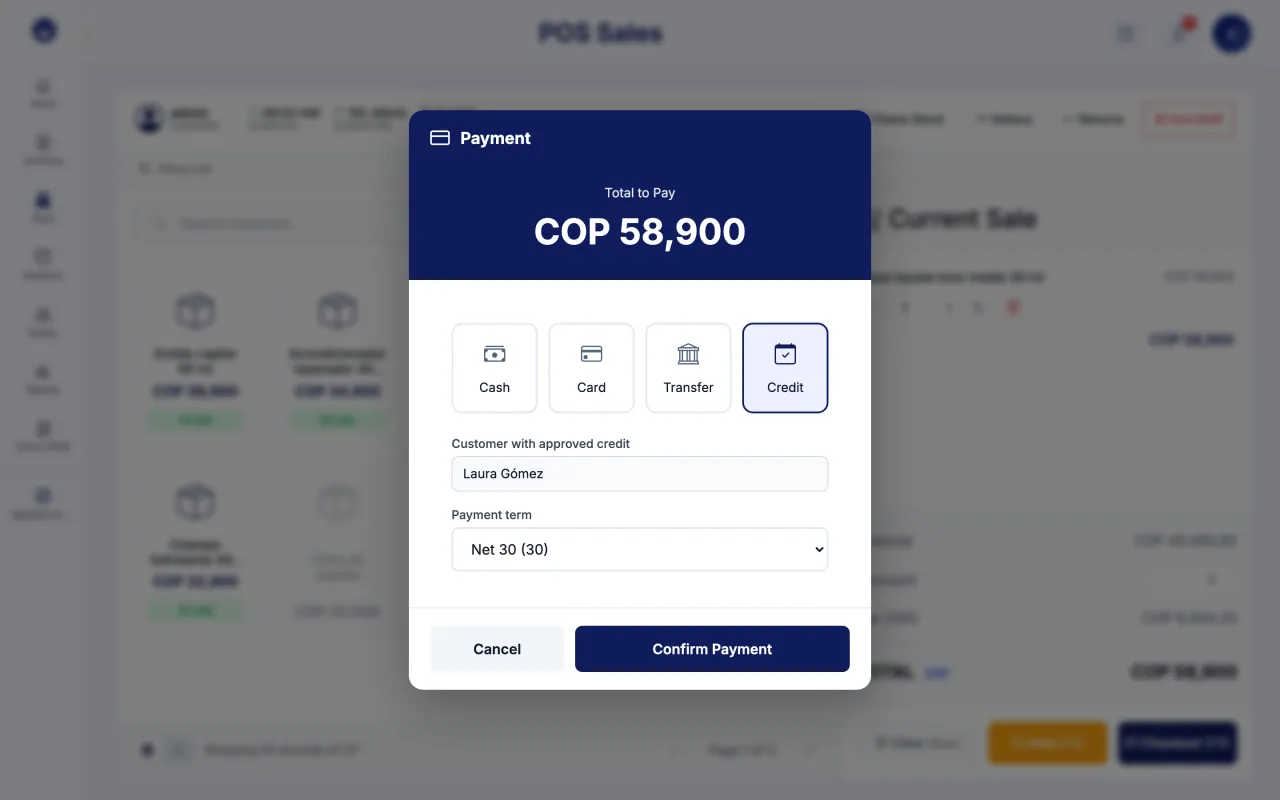
- Choose "Credit".
- Under "Customer with approved credit" find the customer and pick the "Payment term".
- Click "Confirm Payment". The receipt shows the balance and the due date.
A credit sale counts as a sale in your reports; it just does not count toward expected cash. The customer pays later from the Cash Register with "Customer payment". Credit sales need an internet connection.
Guide 6 of 7How to put a sale on hold and resume it
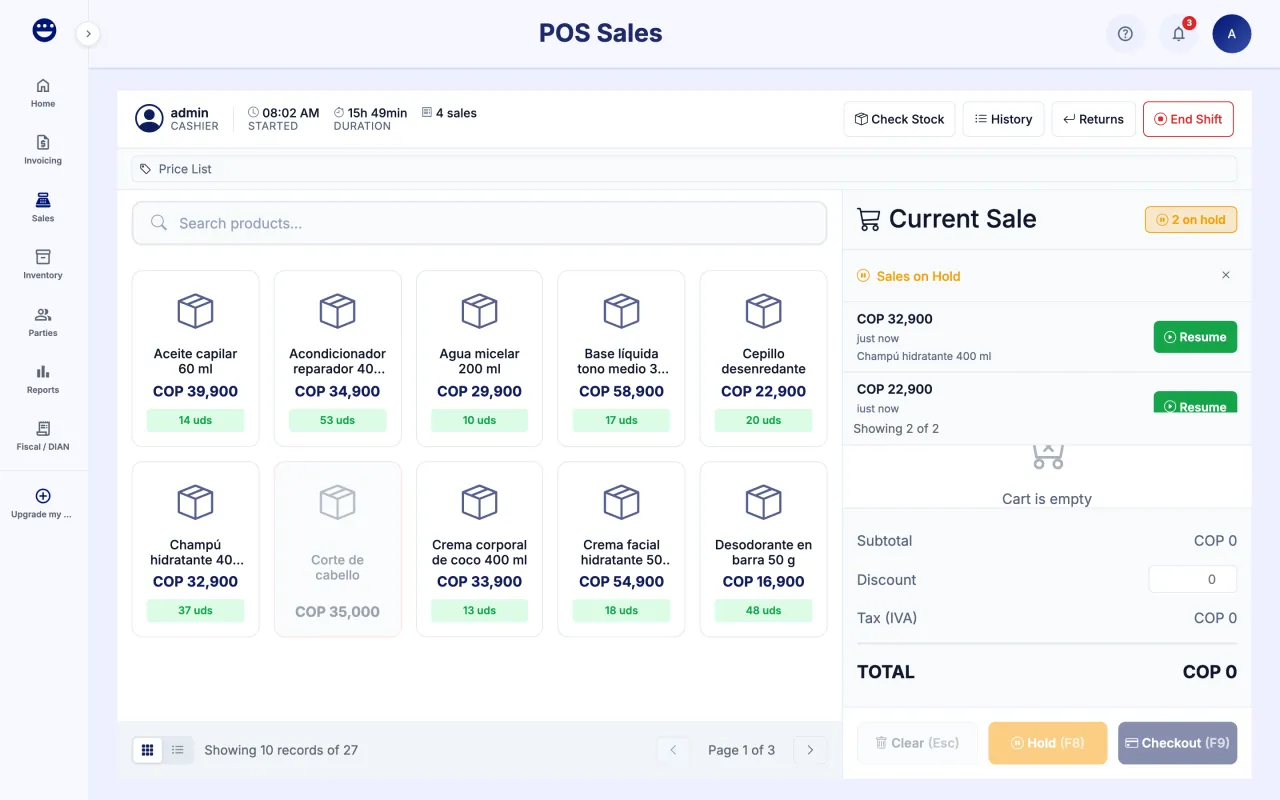
- With products in the cart, click "Hold (F8)". The cart is cleared so you can serve another customer.
- The count of held sales shows next to the cart.
- Click it to open "Sales on Hold" and then "Resume" on the sale you want to continue.
Guide 7 of 7How to check stock and end your shift
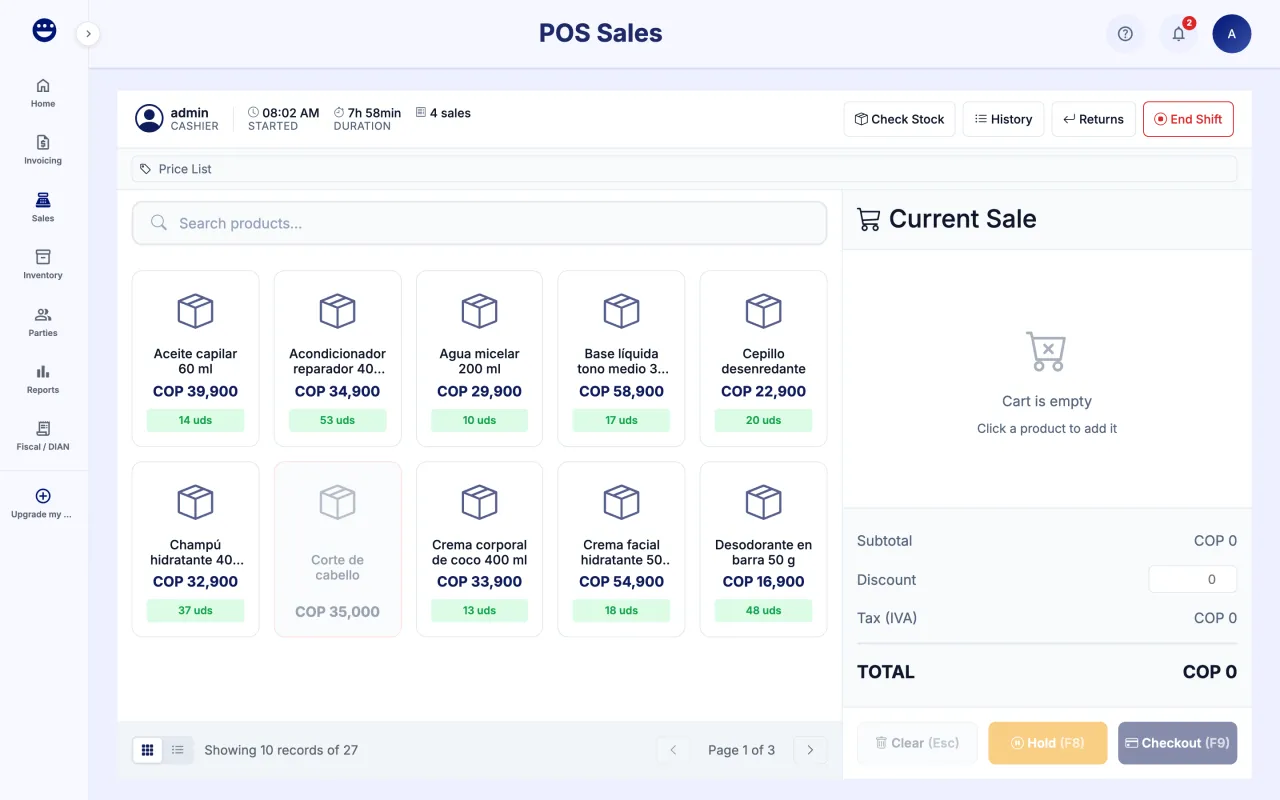
- In the shift bar, click "Check Stock" and search the product by name or SKU. You see the quantity at each location.
- From the same bar, "History" opens the sales of your shift and "Returns" opens the returns and exchanges screen.
- To finish, click "End Shift". The register close opens, where you count the cash and close.
Keyboard shortcuts: F9 checks out, F8 puts the sale on hold and Esc clears the cart.
Frequently asked questions
Can I sell a product with no stock?
Yes. If the cart exceeds the stock, POSYMA shows "Not enough stock" and you can choose "Sell anyway"; stock goes negative. To stop the question, turn on "Sell without stock" in Preferences > Point of Sale.
What happens if the internet goes down?
You can keep charging in cash only. The sale is saved as "Pending Sync" and is sent when the connection returns. Credit sales and charging appointments need a connection.
How do I fix a sale that was already charged?
An issued sale is never deleted. If the customer returns or exchanges products, use Sales > Returns: POSYMA records the credit note for the original sale.
Why can I not charge?
Check the notice in the cart. The usual cause is an expired or exhausted invoicing resolution, or one that is not set up yet. An administrator adds it from the "Numbering" button.