Manual modules
Where it is
Side menu › Home. It is the page that opens after signing in, unless you picked another one in Preferences.
Open in your POSYMA
When you see it
Available in every POSYMA. The cards you see depend on the ingredients your POSYMA includes.
Guide 1 of 3How to read the Home cards
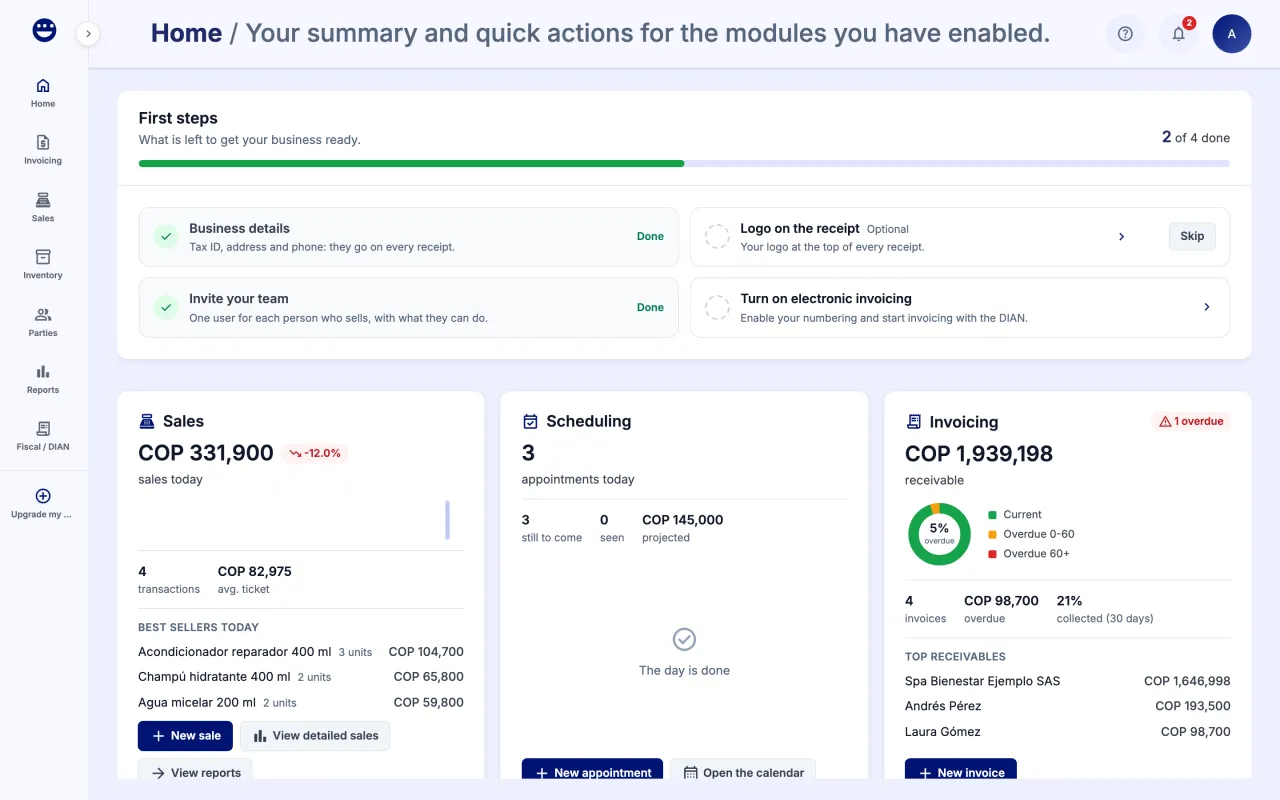
- Sales shows today's sales, transactions, average ticket and best sellers.
- Invoicing shows what you have receivable, what is overdue and the customers with the largest balances.
- Inventory shows how many products are in stock, low on stock and out of stock.
- Scheduling shows today's appointments, the ones still to come and the next one.
- Reports shows this month's revenue, margin and gross profit.
- Fiscal shows how much of your resolution numbering is used, the prefix and the days until it expires.
If a card is missing, that ingredient is not in your POSYMA or your role has no access to that module.
Guide 2 of 3How to use the quick actions
- On the Sales card, click "New sale" to open the point of sale.
- On the Invoicing card, click "New invoice".
- On the Inventory card, click "New product".
- On the Scheduling card, click "New appointment" or "Open the calendar".
Guide 3 of 3How to find your way around POSYMA
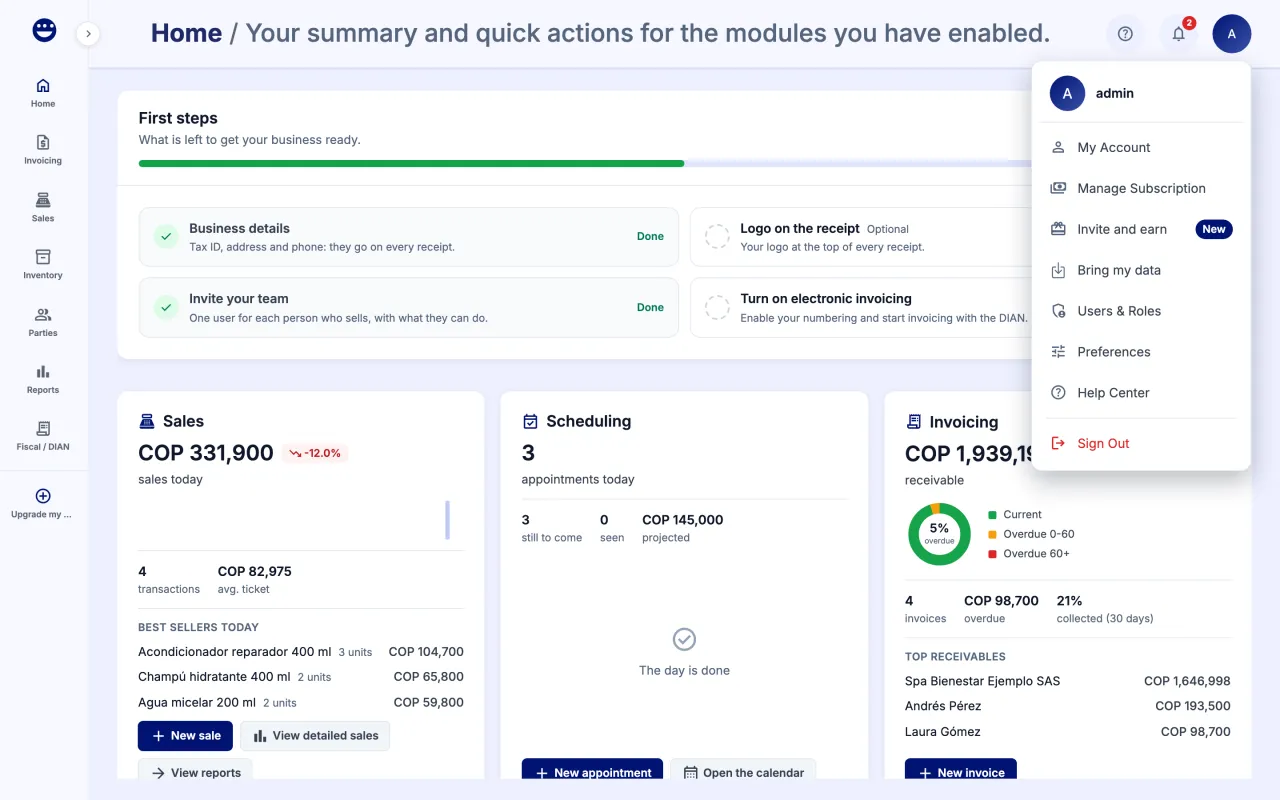
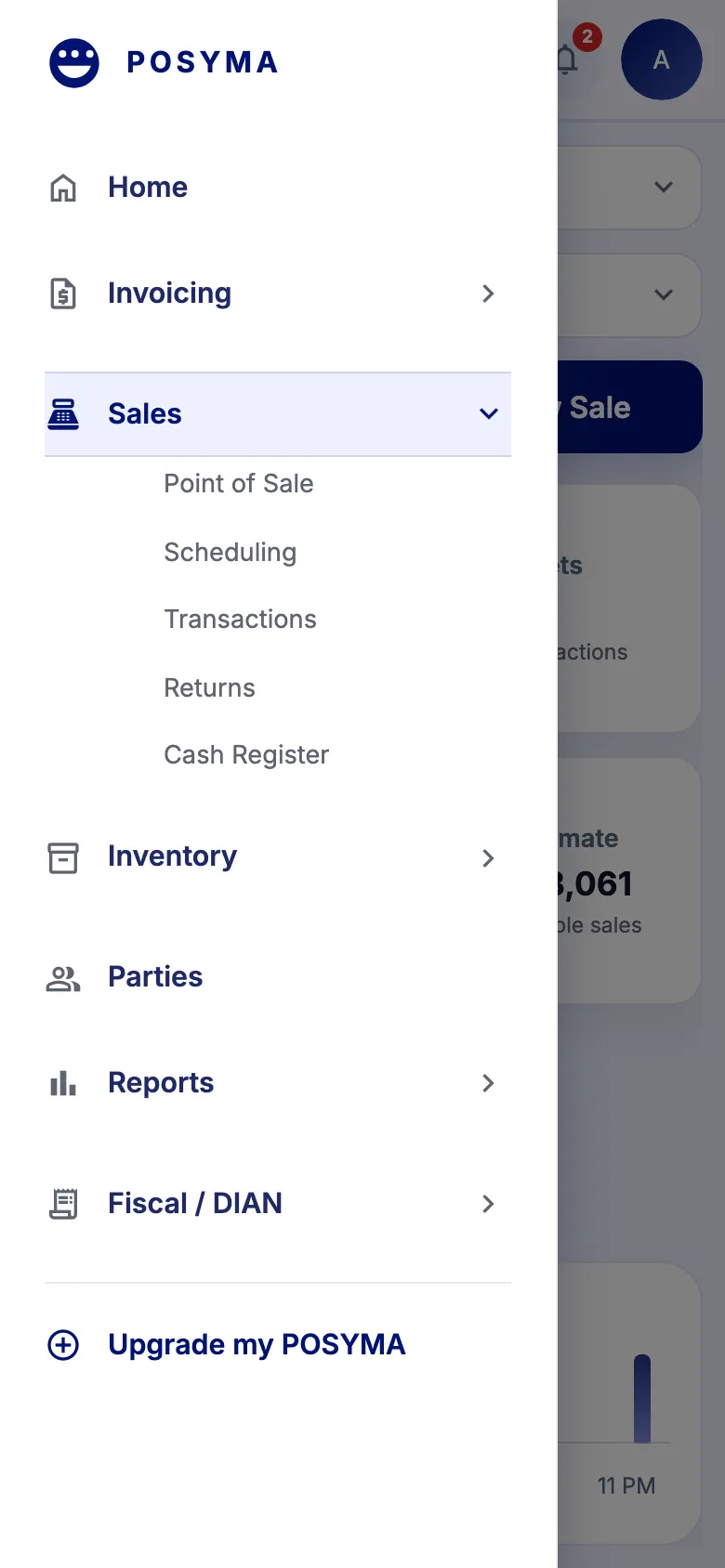
- Use the side menu to go to each module. Groups with an arrow, such as Sales or Inventory, open to show their screens.
- Click the arrow at the top of the menu to collapse it and gain space.
- At the top right you have the "Help" menu (Mia is there, under "Talk to an agent"), notifications and your account menu.
- The account menu has "My Account" (opens "Profile & Preferences"), "Manage Subscription", "Invite and earn", "Bring my data", "Users & Roles", "Preferences", "Help Center" and "Sign Out". Each person only sees the options their role allows.
- If you are the owner, the bottom of the side menu has "Upgrade my POSYMA" to add ingredients.
Frequently asked questions
Can I change the page that opens when I sign in?
Yes. Go to Preferences > General and pick the "Default Landing Page".
What is the "Coming from another system?" notice?
It is a shortcut to the assistant that brings your products and customers from a spreadsheet. Click "Bring my data", or "Dismiss" if you do not need it.