Manual modules
Guide 1 of 5How to make a service bookable
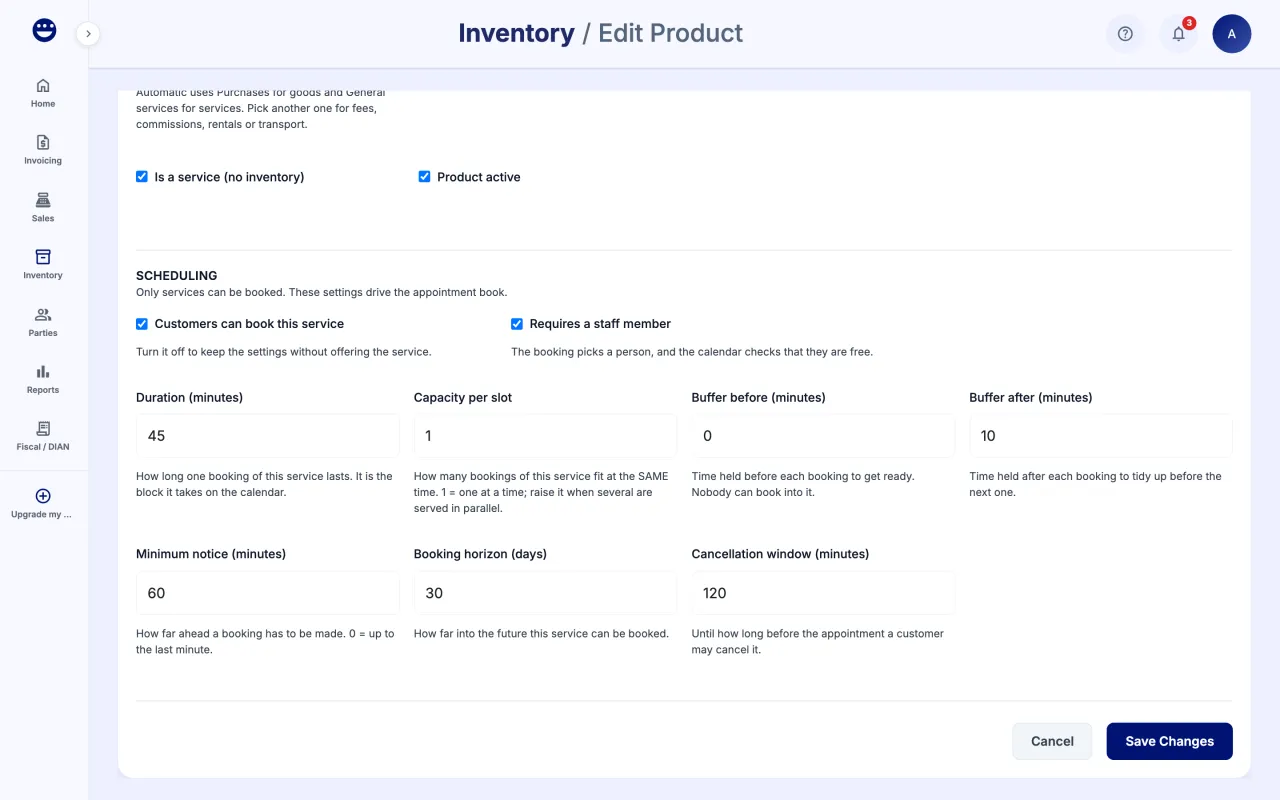
- Go to Inventory > Products and create or edit the service.
- Tick "Is a service (no inventory)".
- In the "Scheduling" section, tick "Customers can book this service".
- Set the "Duration" and, if needed, the "Buffer before" and "Buffer after" for setup and cleanup.
- Adjust "Requires a staff member", "Capacity per slot", "Minimum notice", "Booking horizon" and "Cancellation window".
- Save the product.
Guide 2 of 5How to set up hours and team
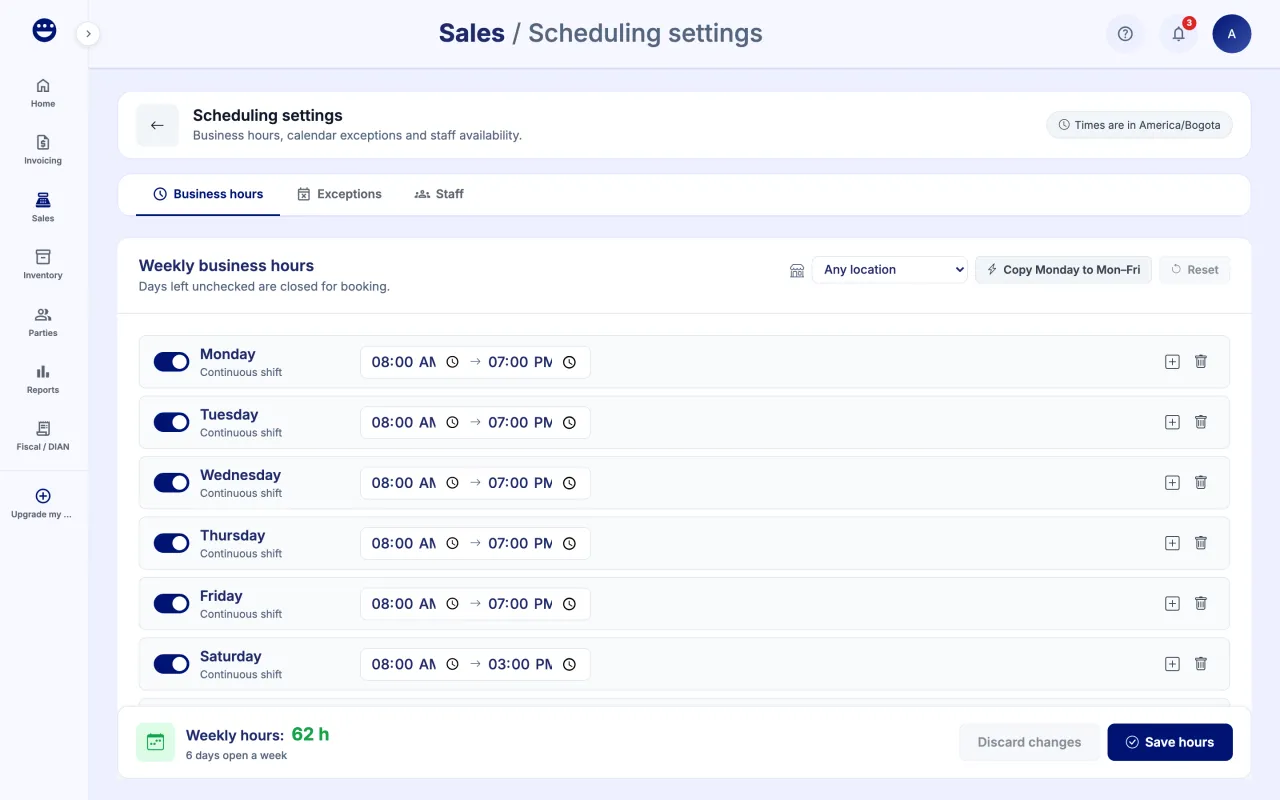
- In the calendar, click "Settings".
- On the "Business hours" tab, tick the days you open, set when it "Opens" and "Closes", and click "Save hours".
- Under "Exceptions", add holidays or one-off closures with the "Closed" kind, or extended days with "Extra opening". Click "Add exception".
- Under "Staff", pick a staff member, tick the "Services performed" and add their bands under "Weekly availability" with "Add band".
- Click "Save configuration".
To block a specific time, the calendar's "Block time" button takes you to these same settings. You record it there as an exception.
Guide 3 of 5How to book an appointment
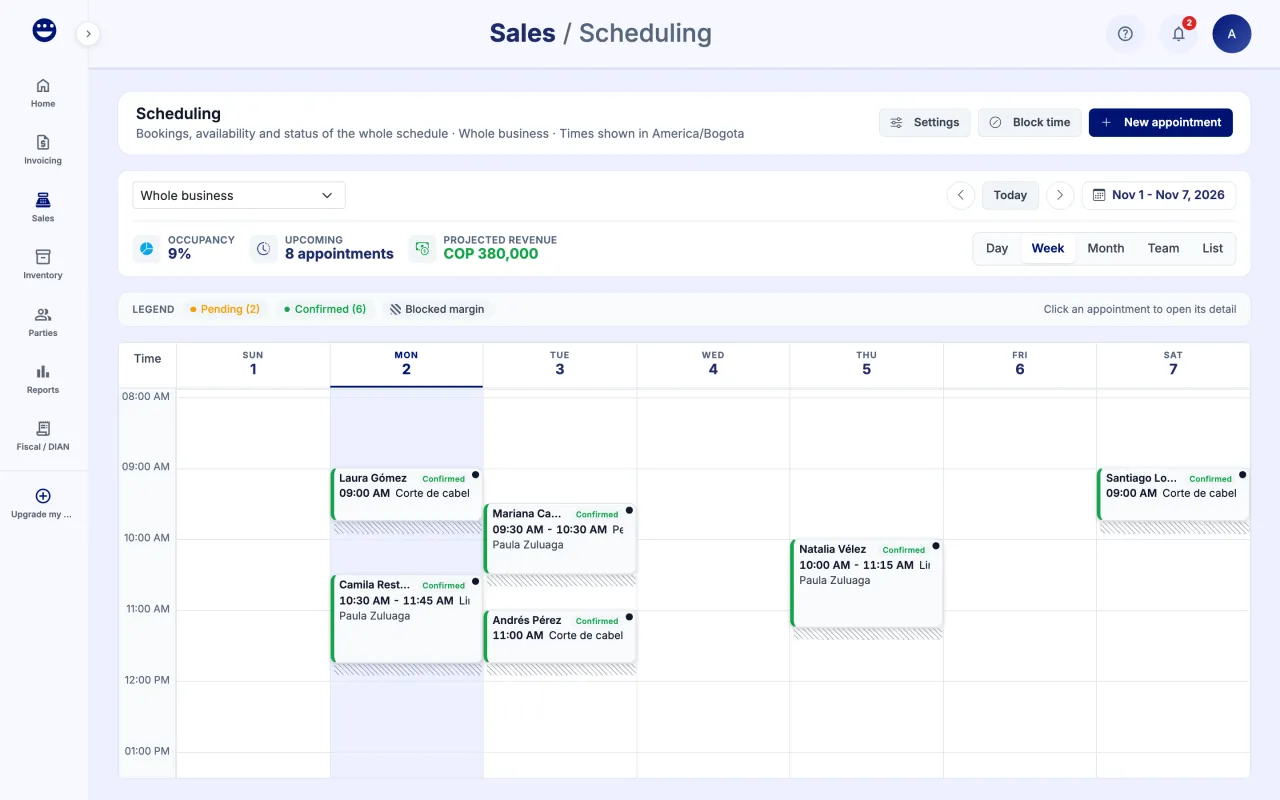
- In the calendar, click "New appointment".
- Under "Services", pick one or more and click "Next".
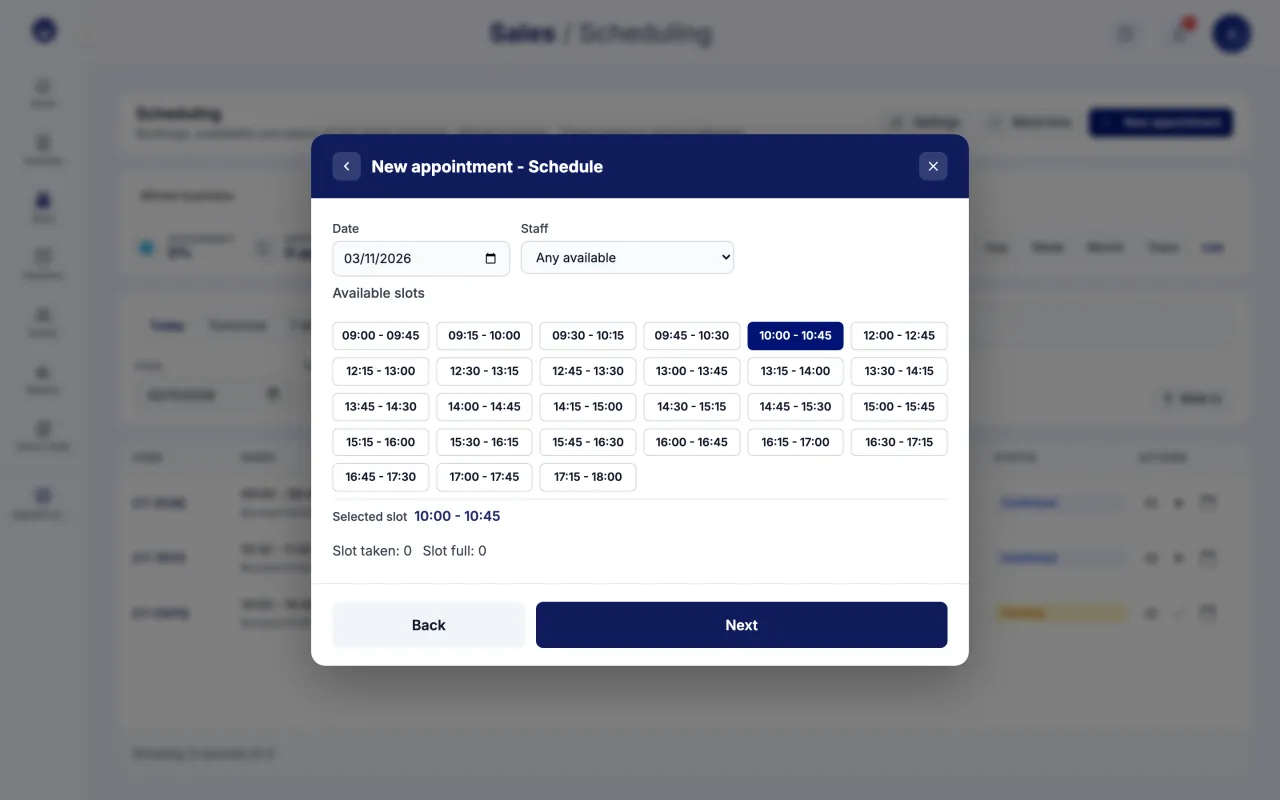
- Under "Schedule", choose the "Date", the "Staff" or "Any available", and one of the "Available slots".
- Under "Customer", type the "Customer name", phone and notes if you want.
- Click "Book".
For a walk-in customer, open the "List" view and click "Walk-in": POSYMA books today's first free slot. With "Book and start" the appointment starts right away.
Guide 4 of 5How to change an appointment's status
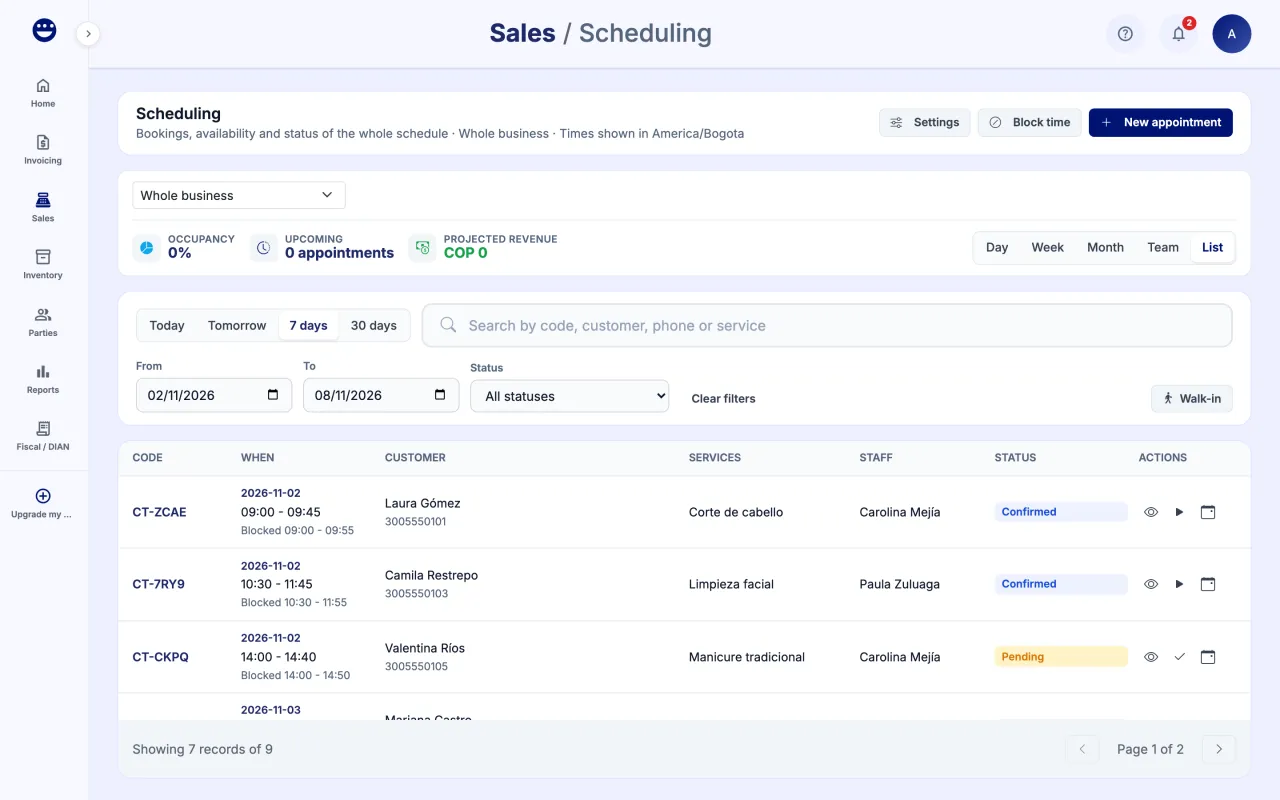
- Click the appointment in the calendar or the list.
- Use the actions as it goes: "Confirm", "Start", "Complete" or "No show".
- To move it, click "Reschedule", pick the "New date" and a slot, and confirm with "Reschedule".
- To cancel it, click "Cancel", say whether the "Customer" or the "Business" cancelled, type the reason and confirm with "Cancel appointment".
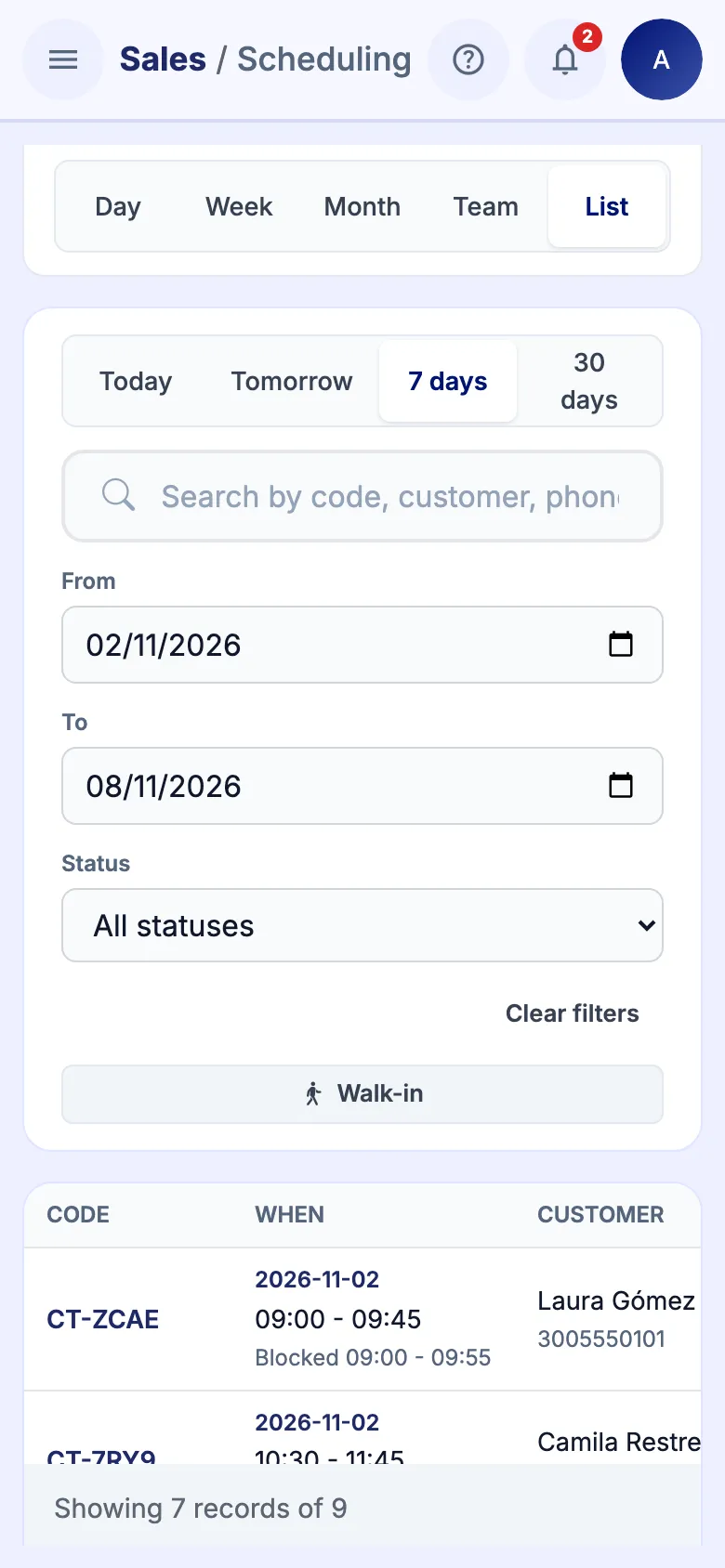
Switch views with "Day", "Week", "Month", "Team" or "List", and use "Scope" to see your appointments, one person's or the "Whole business".
Guide 5 of 5How to charge an appointment
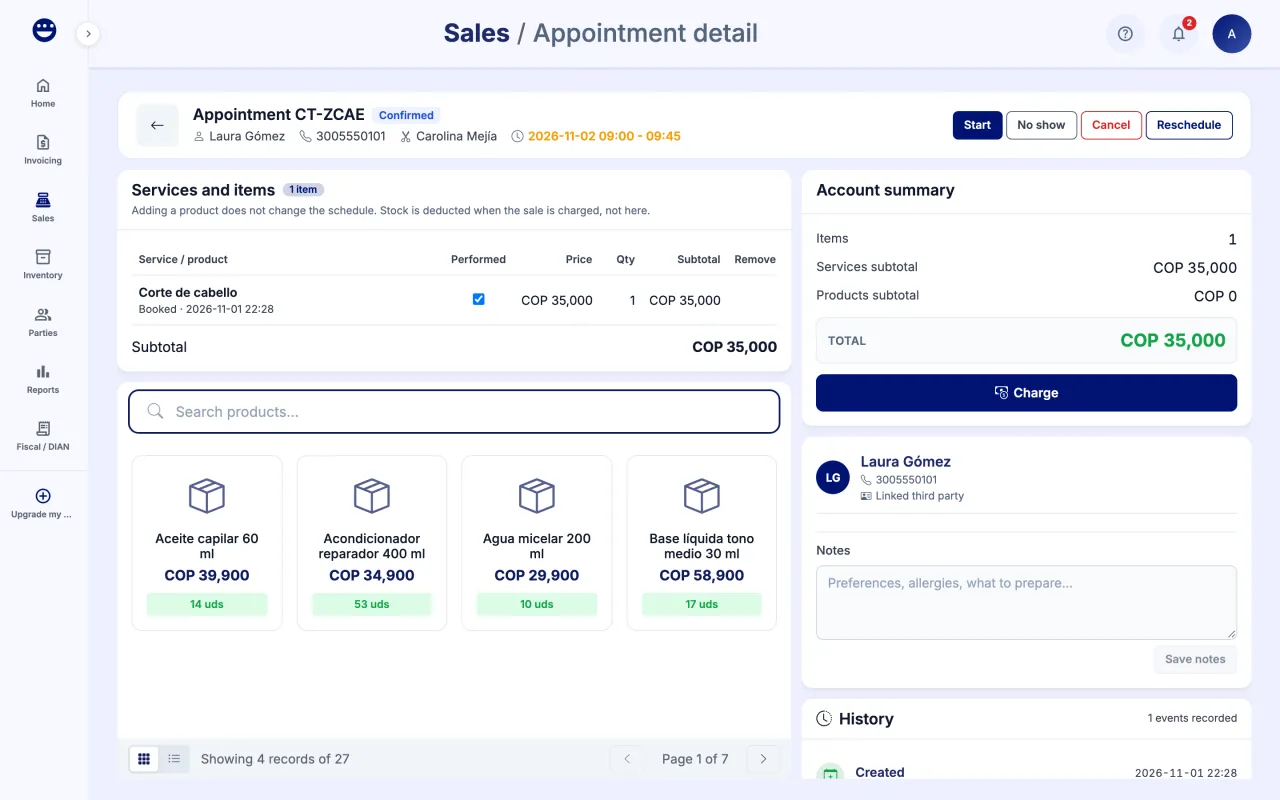
- Open the appointment detail.
- Under "Services and items", tick "Performed" for each service. To add products the customer took, find them in "Search products..." below the list and click each one.
- Check the "Account summary".
- Click "Charge". The point of sale opens with the account lines in the cart.
- Charge it like any sale. The appointment is linked to the sale and its detail shows "View sale".
Stock is deducted when the sale is charged, not when you add the product to the account. An appointment can only be charged once.
Frequently asked questions
Can I book someone on the team who does not use POSYMA?
Yes. In Users & Roles, use "Add collaborator without access". They show up in the schedule and in sales without signing in.
Why are there no available slots?
Check that the day is open under "Business hours", that there is no closing exception, and that the staff member has bands and performs that service under "Staff".
Which time zone are appointments shown in?
In your business's local time. The settings screen tells you which time zone it uses.