Manual modules
When you see it
Shows up if your POSYMA includes the cash register. It comes with point of sale.
Guide 1 of 5How to open the register
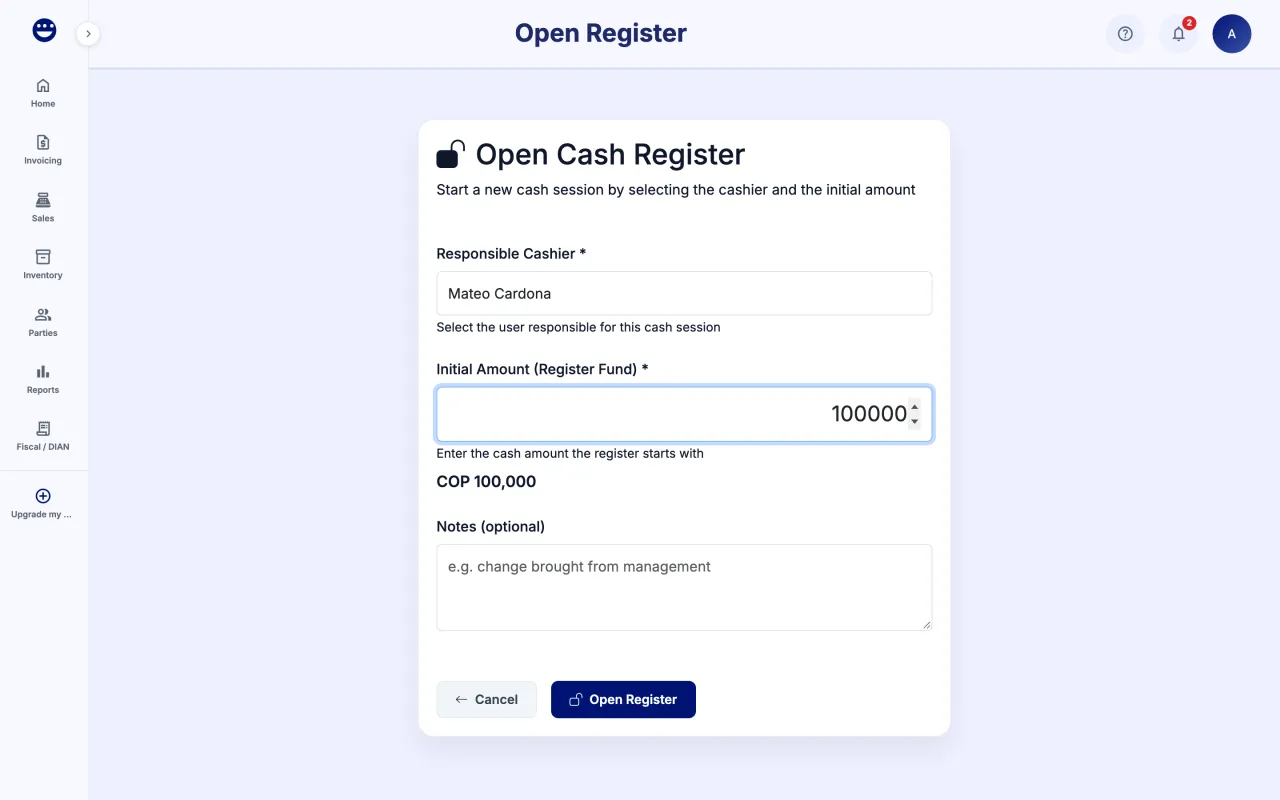
- Open Sales > Cash Register. If it is closed, you see "Register closed".
- Click "Open Register".
- "Responsible Cashier" shows who works the shift. If you are a manager or admin, you pick them when you open.
- Type the "Initial Amount (Register Fund)" and, if you want, some notes.
- Click "Open Register".
You can also open the register from the point of sale with "Start Shift".
Guide 2 of 5How to record cash in or cash out
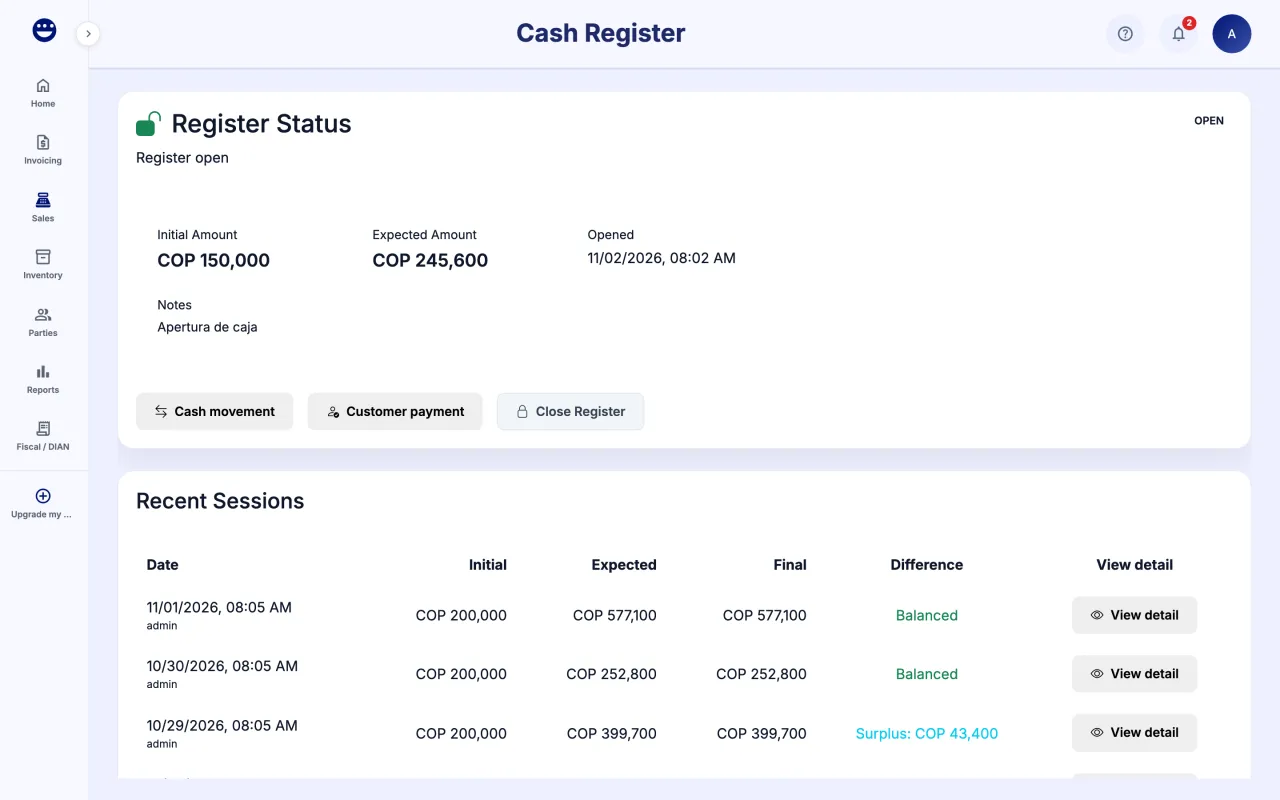
- With the register open, click "Cash movement".
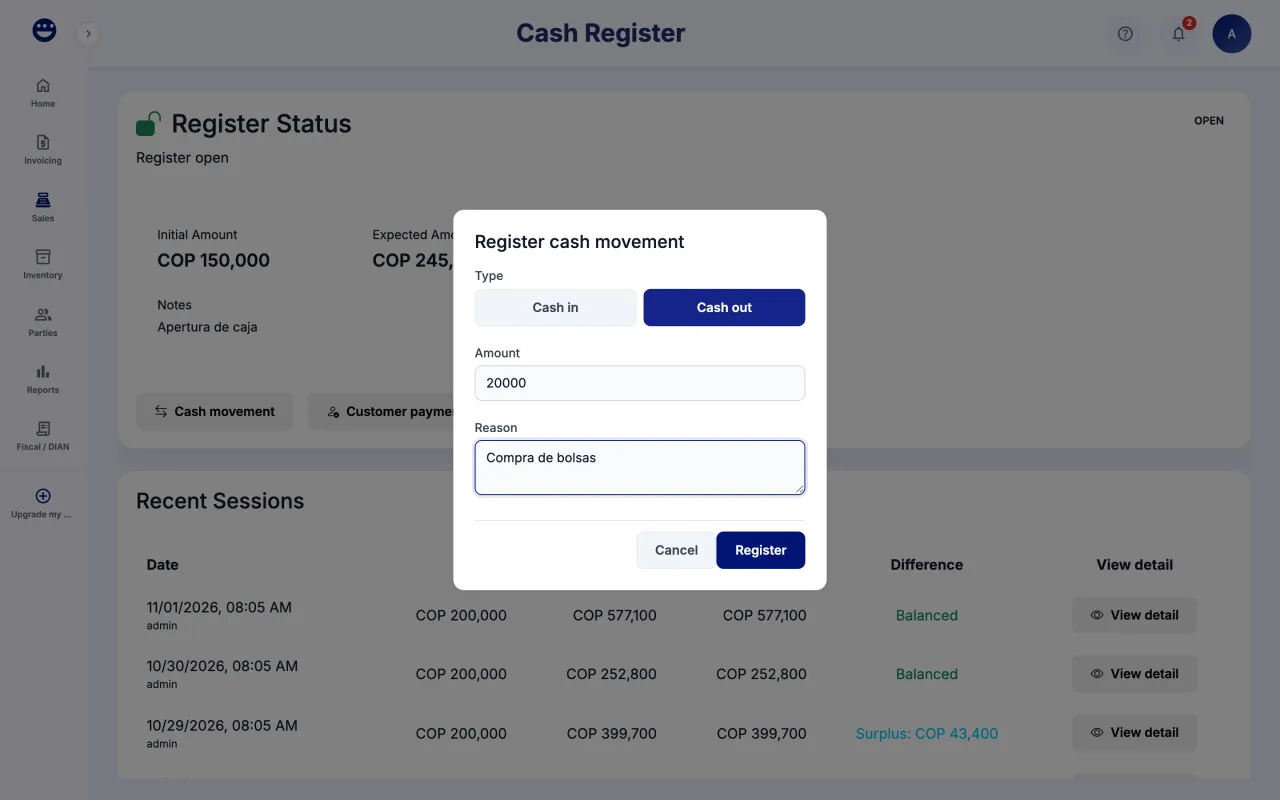
- Under "Type" pick "Cash in" or "Cash out".
- Type the "Amount" and the "Reason", for example "change from the office".
- Click "Register". The movement shows in "Cash movements".
Guide 3 of 5How to take a customer payment
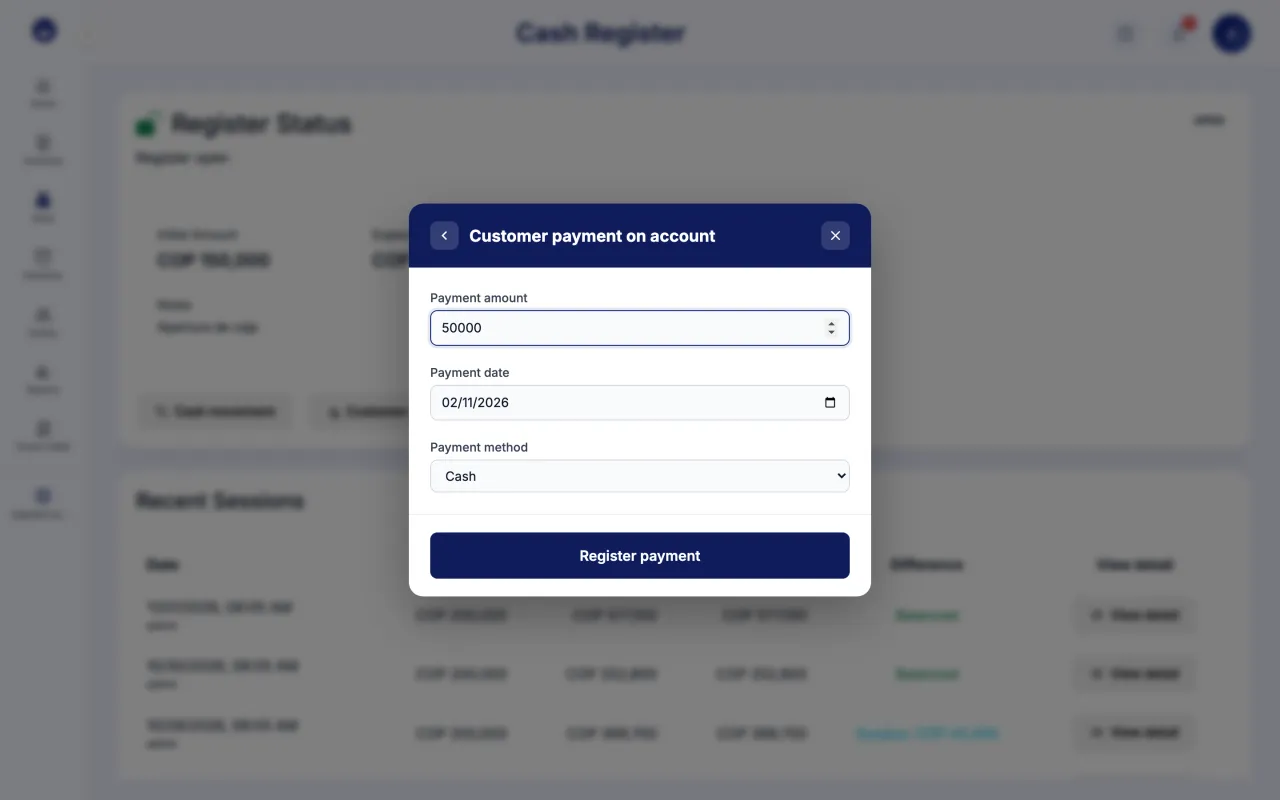
- With the register open, click "Customer payment".
- Find the customer by name or ID and pick them. You see their "Total outstanding balance": the sum of their unpaid credit invoices.
- Type the "Payment amount", choose the "Payment method" and the "Payment date".
- Click "Register payment". POSYMA shows the total applied, the remaining balance and the receipt number.
- Click "Print receipt" if the customer asks for it.
Guide 4 of 5How to close the register and count the cash
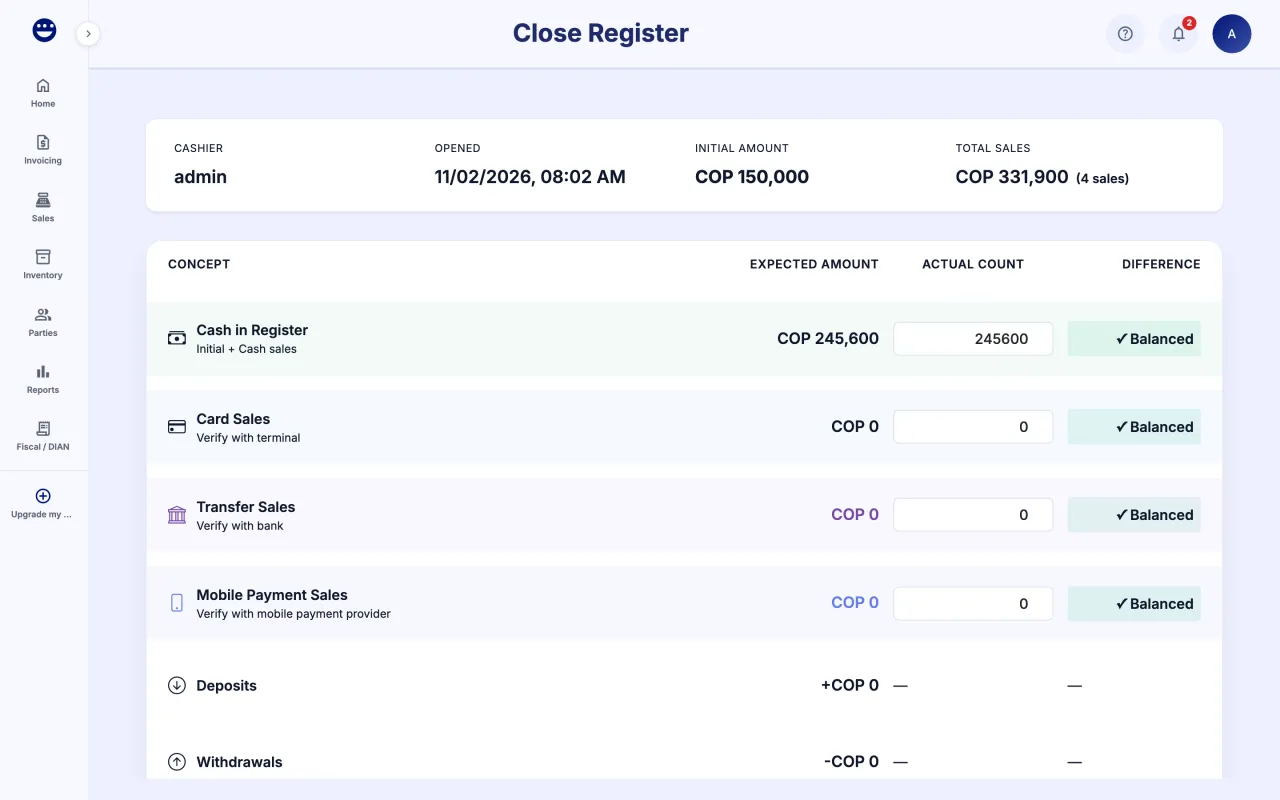
- Click "Close Register" (or "End Shift" from the point of sale).
- Check the summary: cashier, opening time, initial amount and total sales.
- Under "Cash in Register", type the money you counted in "Actual Count". POSYMA works out the "Difference".
- Check card sales against your card terminal and transfers against your bank.
- Add "Closing Notes" if needed and click "Close Register". If there is a difference, the button reads "Close with Discrepancy".
- Confirm with "Confirm".
In Preferences > Point of Sale, the "Cash Register Close Rules" set the difference that shows a warning, the one that blocks the close, and whether manager approval or notes are required.
Guide 5 of 5How to review past closes
- In the Cash Register, scroll to "Recent Sessions".
- Each row shows the date, initial, expected and final amounts and the difference ("Balanced", "Surplus" or "Shortage").
- Click "View detail" to see the "Session detail" with expected, counted and customer payments by method.
Frequently asked questions
Do credit sales add to expected cash?
No. A credit sale counts as a sale, but it does not add to expected cash because the money did not reach the register. When the customer pays in cash, that payment does add.
Who can open or close the register?
Anyone whose role has write access to the cash register. Others see the register status but not the buttons to open, record movements or close.