Manual modules
Guide 1 of 7How to issue an electronic invoice
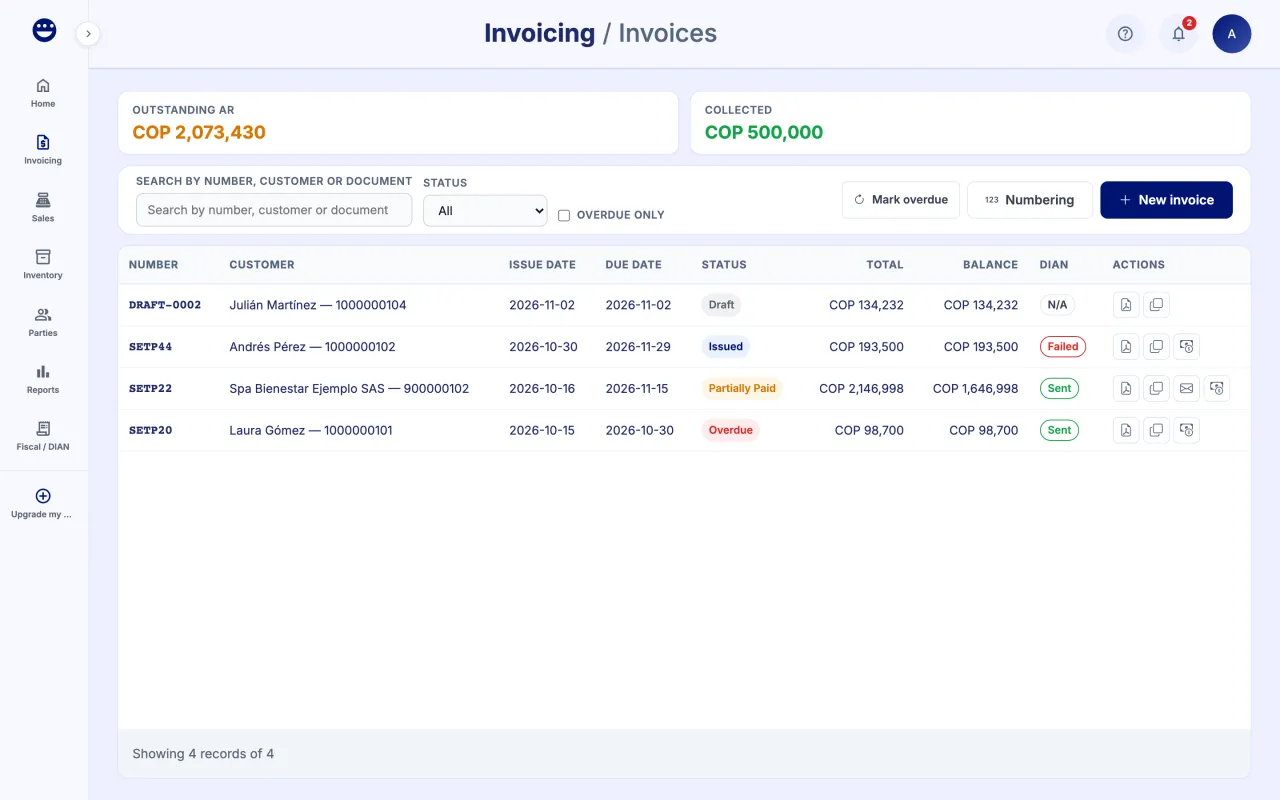
- Open Invoicing > Invoices and click "New invoice".
- Under "Customer", find the customer or pick "Final consumer". If they do not exist, the list offers to create them.
- Check the "Invoice type", "Payment method", "Payment type" (Cash or Credit) and, for credit, the "Payment term".
- Under "Items" find the product or type what you sold; if it is not in your inventory, POSYMA lets you create it. Adjust "Qty", "Unit price", "Discount" and "Tax". Use "Add line" for more products.
- Check the totals. Withholdings are calculated automatically from the customer's tax responsibilities.
- Click "Save & issue". POSYMA sends the invoice to the DIAN; the DIAN column shows when it is "Sent".
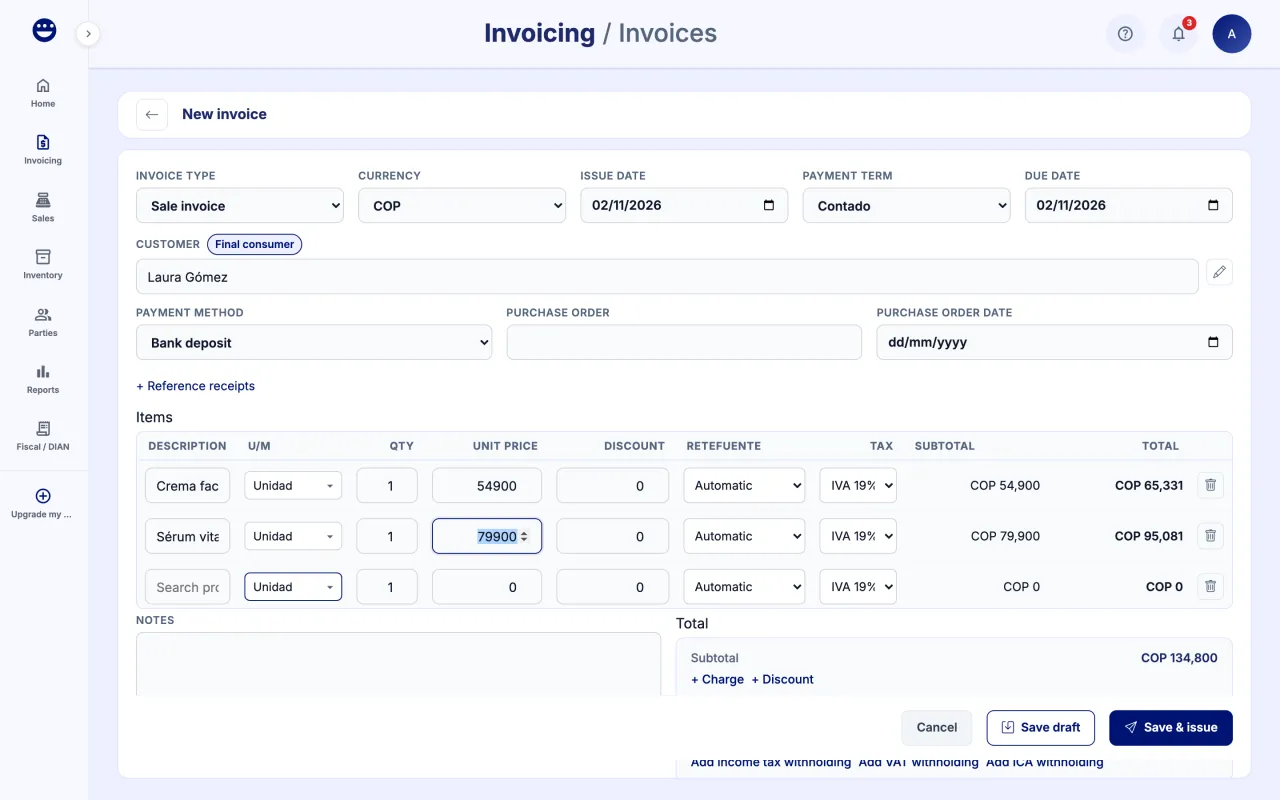
With "Save draft" you keep it without sending it and issue it later with "Issue". If the DIAN rejects it, the detail shows the reason; fix the cause and use "Retry submission".
Guide 2 of 7How to record an invoice payment
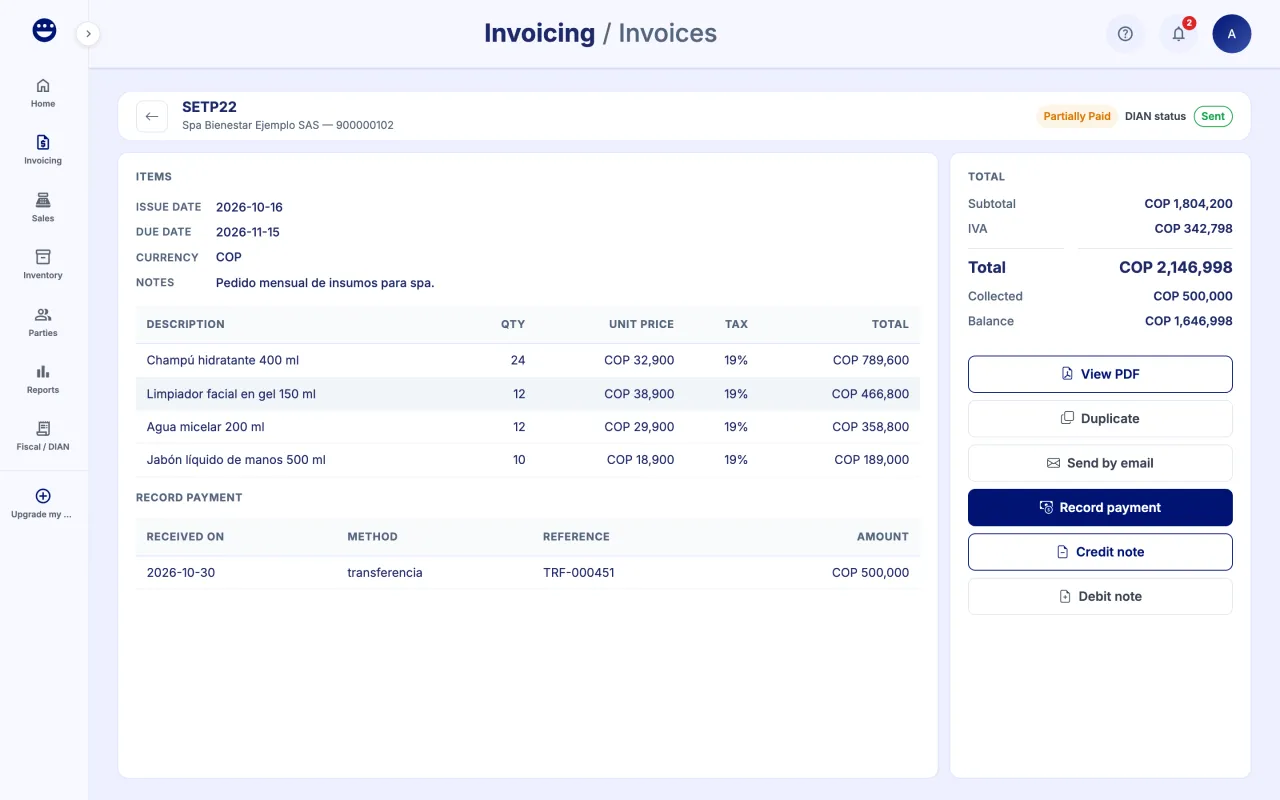
- Open the invoice from the list.
- Click "Record payment".
- Type the "Amount", "Method", "Received on" date and, if you want, a reference and notes.
- Click "Apply payment". The balance updates and the status changes to "Partially paid" or "Paid".
Guide 3 of 7How to correct an invoice with a credit or debit note
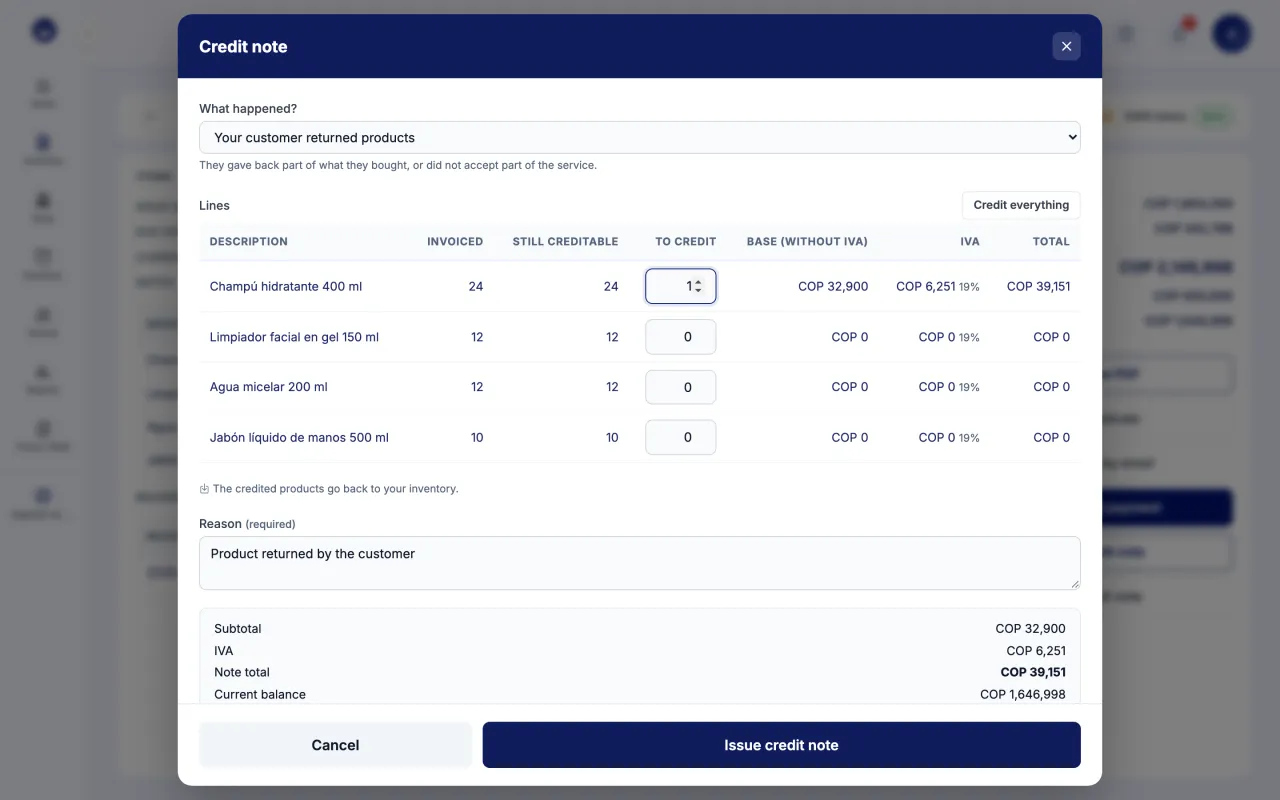
- Open the issued invoice that the DIAN accepted.
- Click "Credit note" to lower its value, or "Debit note" to raise it.
- Under "What happened?" pick the case: for example "Your customer returned products", "You gave a discount" or "You charge interest".
- Type the "Reason", which tells your customer why you issue the note.
- In a credit note, set how much you credit on each line or use "Credit everything". In a debit note, add lines with a description, quantity and price.
- Check the "Note total" and the "Balance after the note", and issue it.
An issued invoice is never deleted or cancelled: every correction is a note. If the note is larger than what your customer still owes, POSYMA asks how you pay the difference back. Credited products go back to your inventory.
Guide 4 of 7How to send or download an invoice
- Open the invoice.
- Click "View PDF" to see or download the PDF.
- Click "Send by email", check "Recipient", "Subject" and "Message", and click "Send".
- Under "Send history" you see when each email went out.
The PDF and email become available once the DIAN accepts the invoice.
Guide 5 of 7How to make a quote and turn it into an invoice
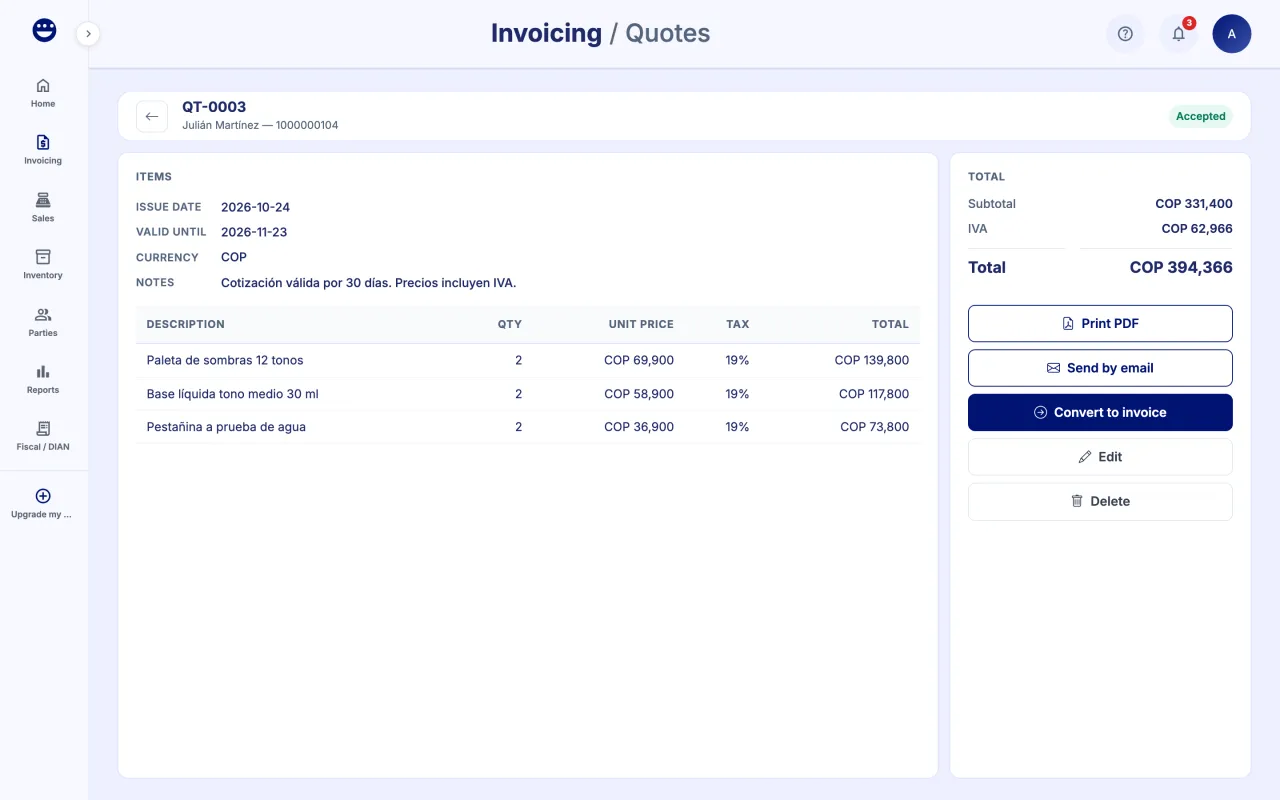
- Open Invoicing > Quotes and click "New quote".
- Pick the customer, add the products and set how long it is valid under "Valid until". Save.
- Use "Print PDF" or "Send by email" to send it to the customer, and "Mark sent".
- When the customer answers, use "Mark accepted" or "Mark rejected".
- To invoice it, click "Convert to invoice" and confirm. The quote becomes "Invoiced".
Converting a quote creates an issued invoice, so you need electronic invoicing in your POSYMA.
Guide 6 of 7How to review receivables
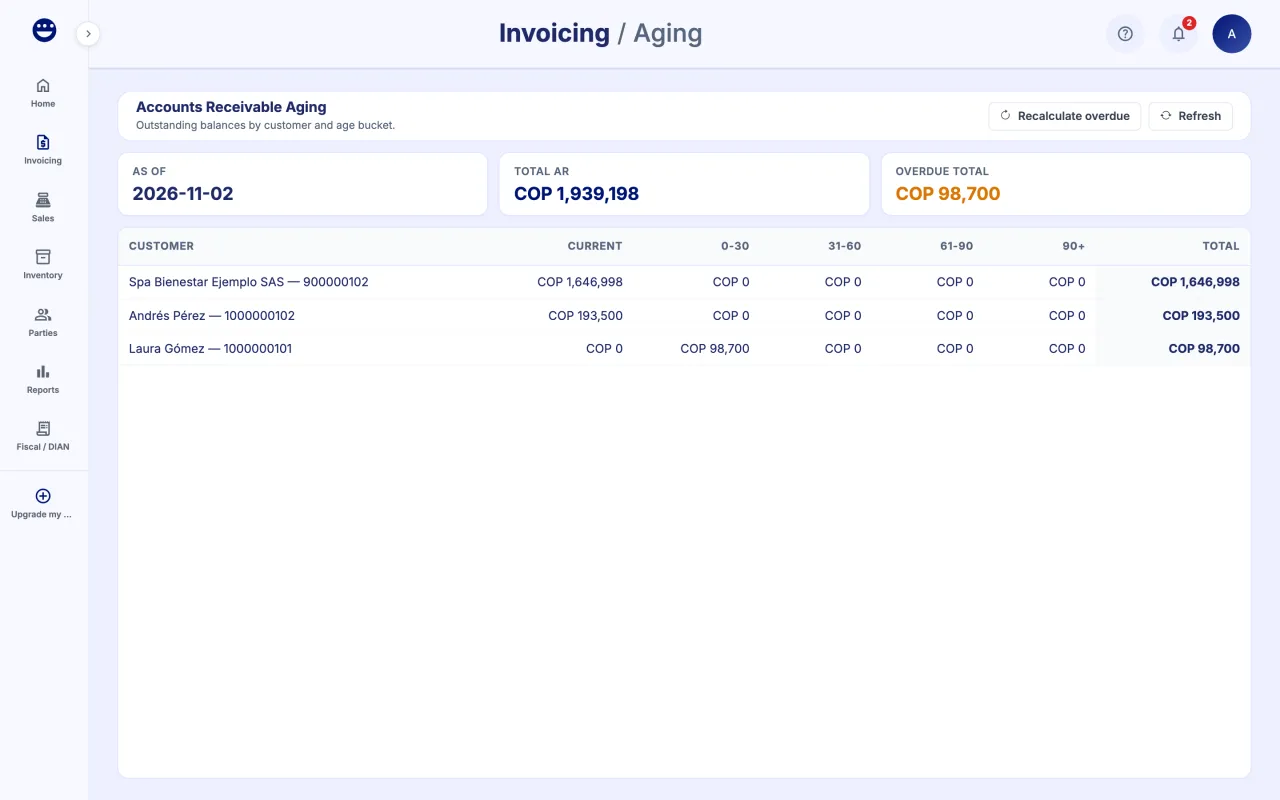
- Open Invoicing > Aging (AR).
- At the top you see the "Total AR" and the "Overdue total".
- The table shows each customer's balance by bucket: "Current", "0-30", "31-60", "61-90" and "90+".
- Click "Recalculate overdue" to update invoices that are past their due date.
Guide 7 of 7How to create payment terms
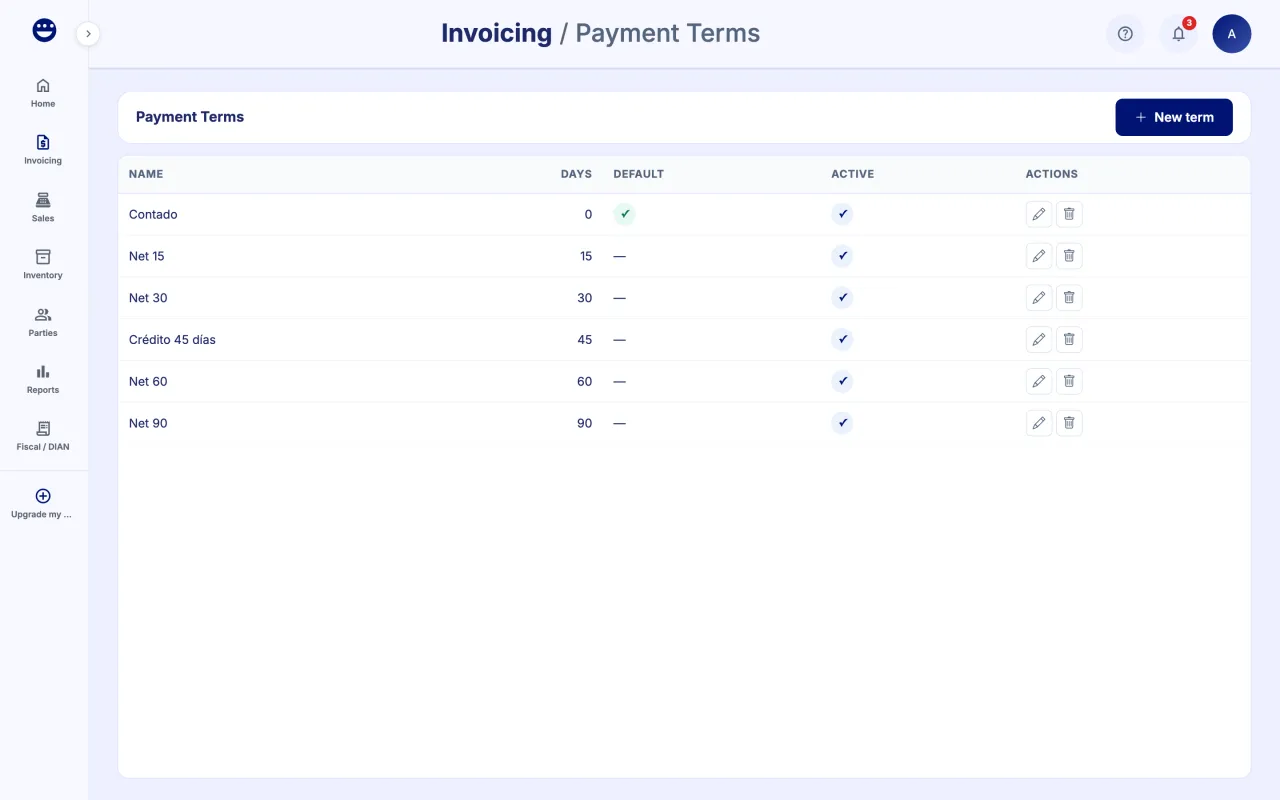
- Open Invoicing > Payment Terms and click "New term".
- Type the "Name" (for example "30 days") and the "Days to due date".
- Tick "Set as default" if you want invoices to start with it.
- Click "Save".
Terms are also used when selling on credit at the point of sale.
Frequently asked questions
Can I cancel an invoice?
No. An invoice issued to the DIAN is never cancelled. To void its effect or correct its value, issue a credit or debit note from its detail. A draft you never issued can be deleted.
What does "Not sent" in the DIAN column mean?
That the invoice has not reached the DIAN yet. Use "Send to DIAN" on the row or in the detail.
It asks for a resolution to issue
You need an active invoicing resolution. Use the "Numbering" button on the invoice list or link it from Home.
How do I see everything for one customer?
Filter the invoice list by customer. You will see their history with invoices, total invoiced, total paid and outstanding balance.