Manual modules
Where it is
Side menu › Sales › Returns. Also from the point of sale with "Returns".
Open in your POSYMA
When you see it
Shows up if your POSYMA includes point of sale.
Guide 1 of 2How to process a return
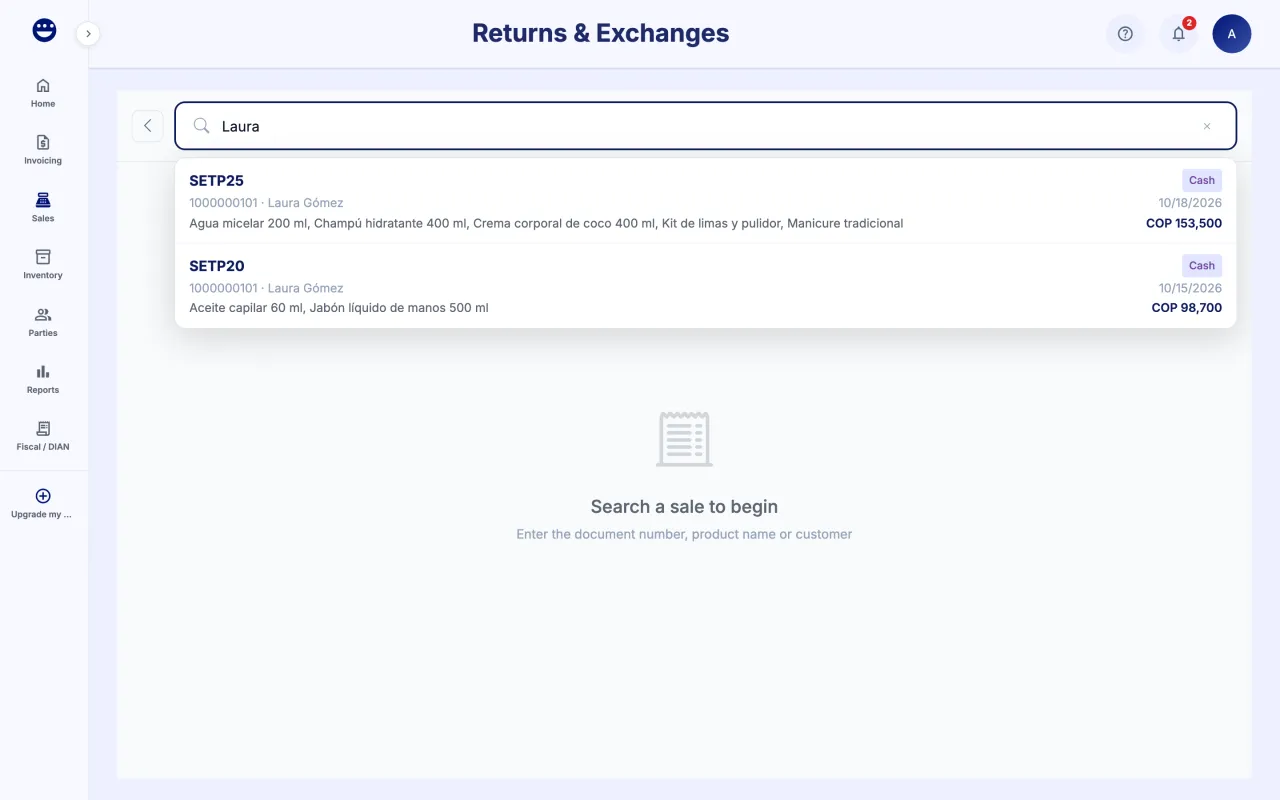
- Open Sales > Returns. Your shift must be open.
- In "Search by document #, product or customer..." find the original sale and open it.
- Tick the products and quantities the customer returns and click "Continue".
- Do not add replacement products. Add "Notes" if you want.
- Choose the refund method and click "Return".
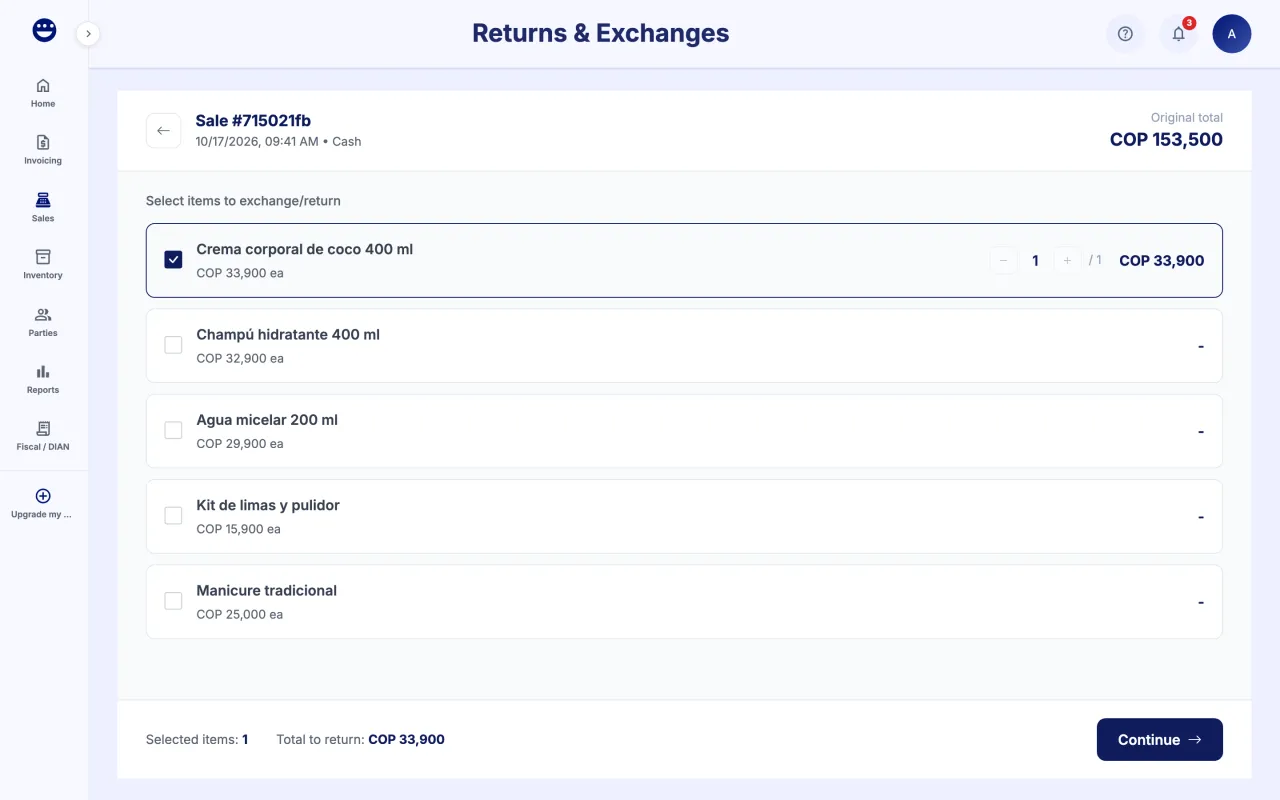
If the original sale was on credit, the return first reduces the customer's debt and you only pay back what they had already paid.
Guide 2 of 2How to exchange a product for another
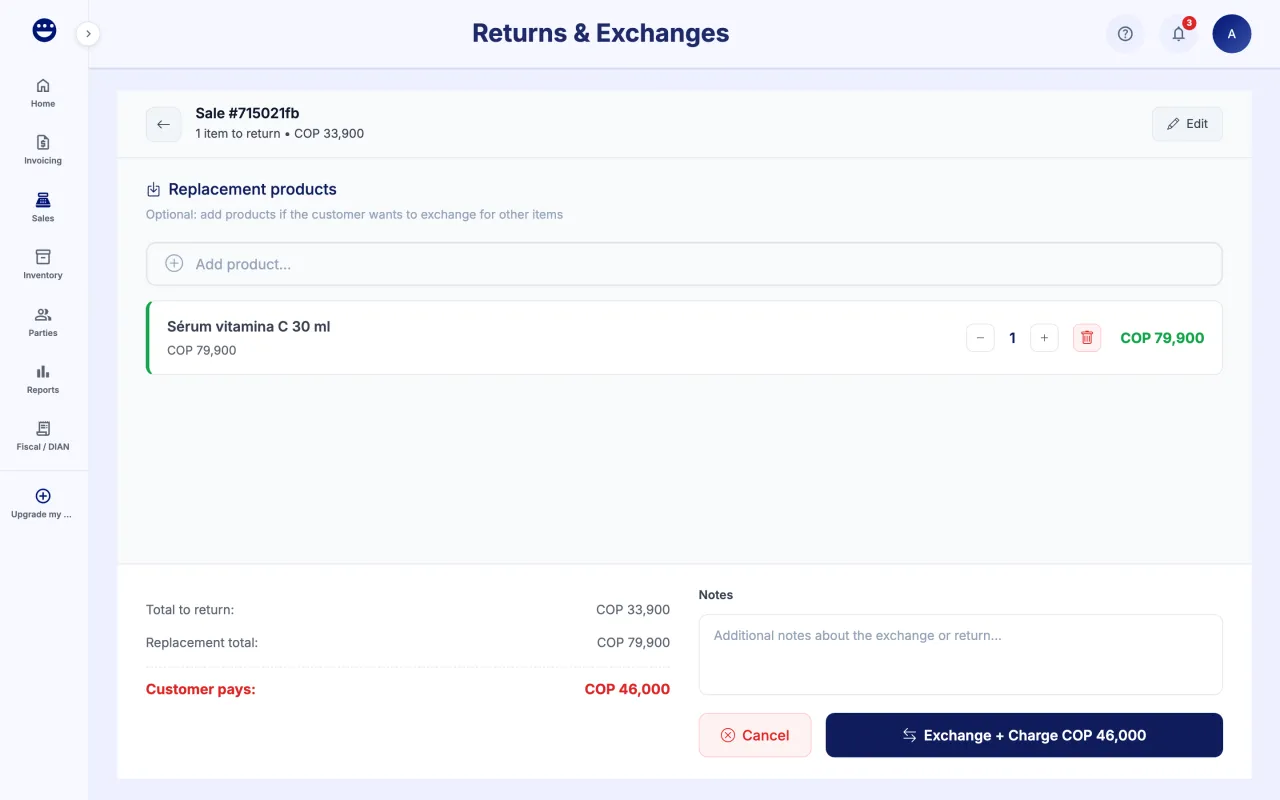
- Find the original sale and tick the products the customer hands back. Click "Continue".
- Under "Replacement products", use "Add product..." to add what the customer takes.
- Check the "Difference:". POSYMA shows whether the customer pays, gets credit or the exchange is even.
- Click the matching button: "Exchange", "Exchange + Charge" or "Exchange + Return".
Frequently asked questions
Can I cancel the sale instead of returning it?
No. An issued invoice is never deleted or cancelled. Every correction is made with a credit or debit note, and a return is how you record it from the point of sale.
I see "Cash register not open"
Returns and exchanges need an open shift. Click "Go to Sales", start your shift and come back.
Where do I see the returns I made?
In Sales > Transactions. The "Type" column marks each row as a sale, return or exchange; opening a return shows the credit note detail.