Manual modules
When you see it
Shows up once your electronic invoicing is set up. Invoices requires electronic invoicing; Exogena and Tax certificates show up if your POSYMA includes them.
Guide 1 of 3How to review the documents sent to the DIAN
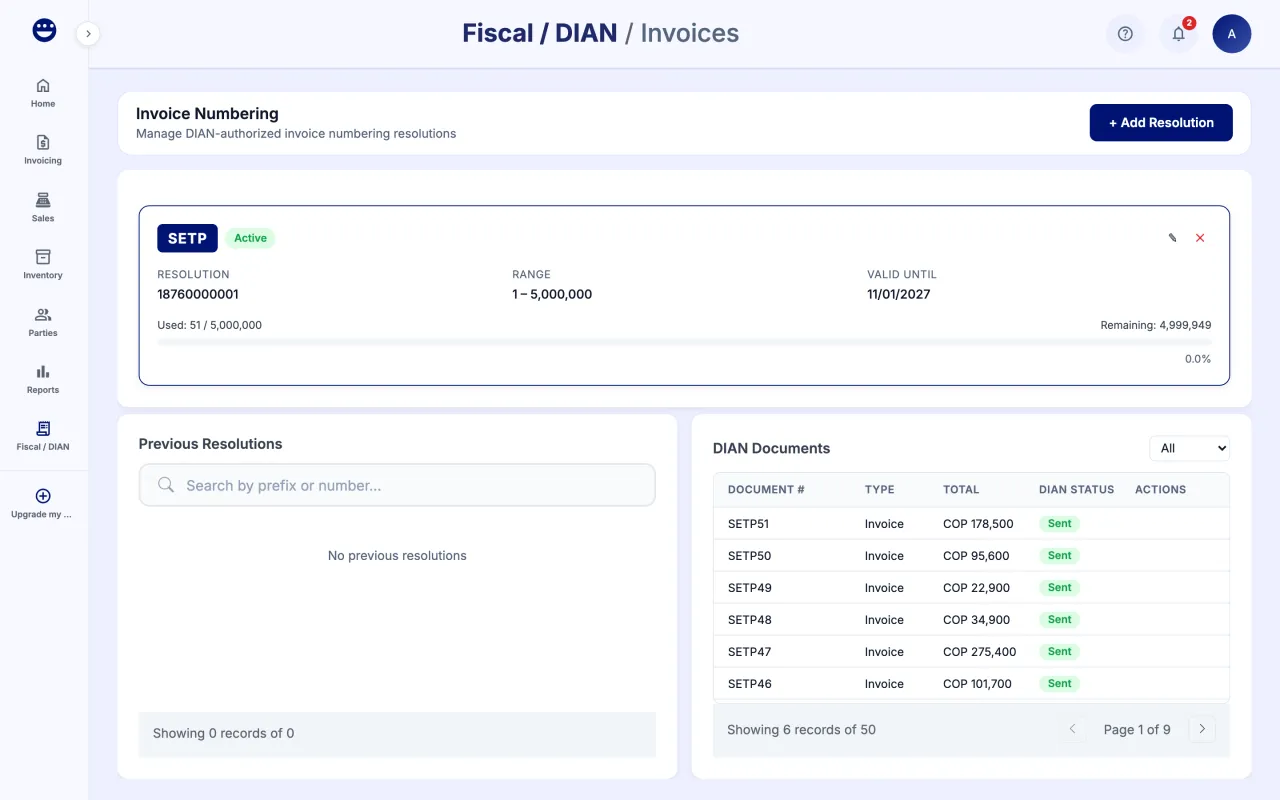
- Open Fiscal / DIAN > Invoices. At the top you see "Invoice Numbering" and, further down, the "DIAN Documents" table with the documents sent.
- Filter with "All", "Accepted", "Pending" or "Rejected". The "DIAN Status" column shows Accepted, Pending, Rejected or Failed.
- To see an invoice's detail or PDF, open it in Invoicing > Invoices.
Guide 2 of 3How to generate the exogenous information report
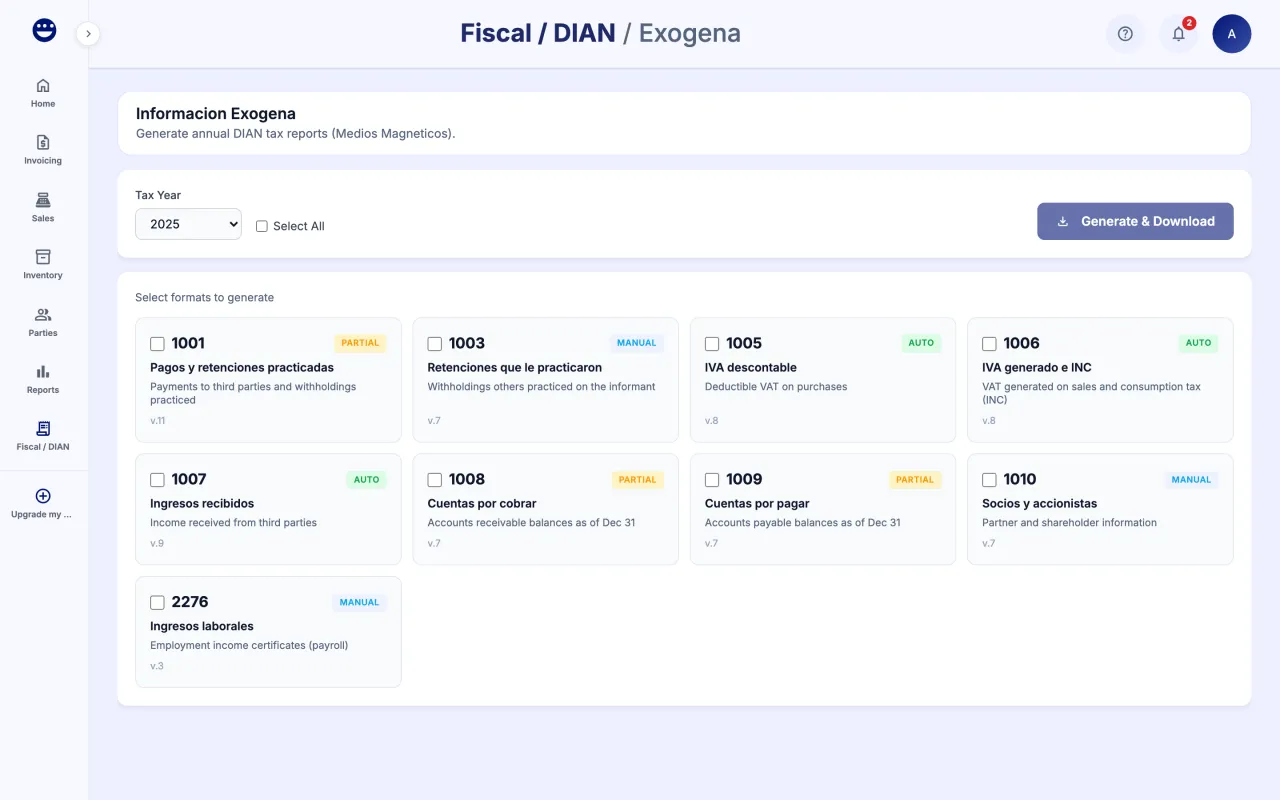
- Open Fiscal / DIAN > Exogena.
- Pick the "Tax Year": the year that already ended, for example 2025 if you report in 2026. The list only shows closed years.
- Under "Select formats to generate" tick the formats or use "Select All".
- Click "Generate & Download".
Guide 3 of 3How to download withholding certificates
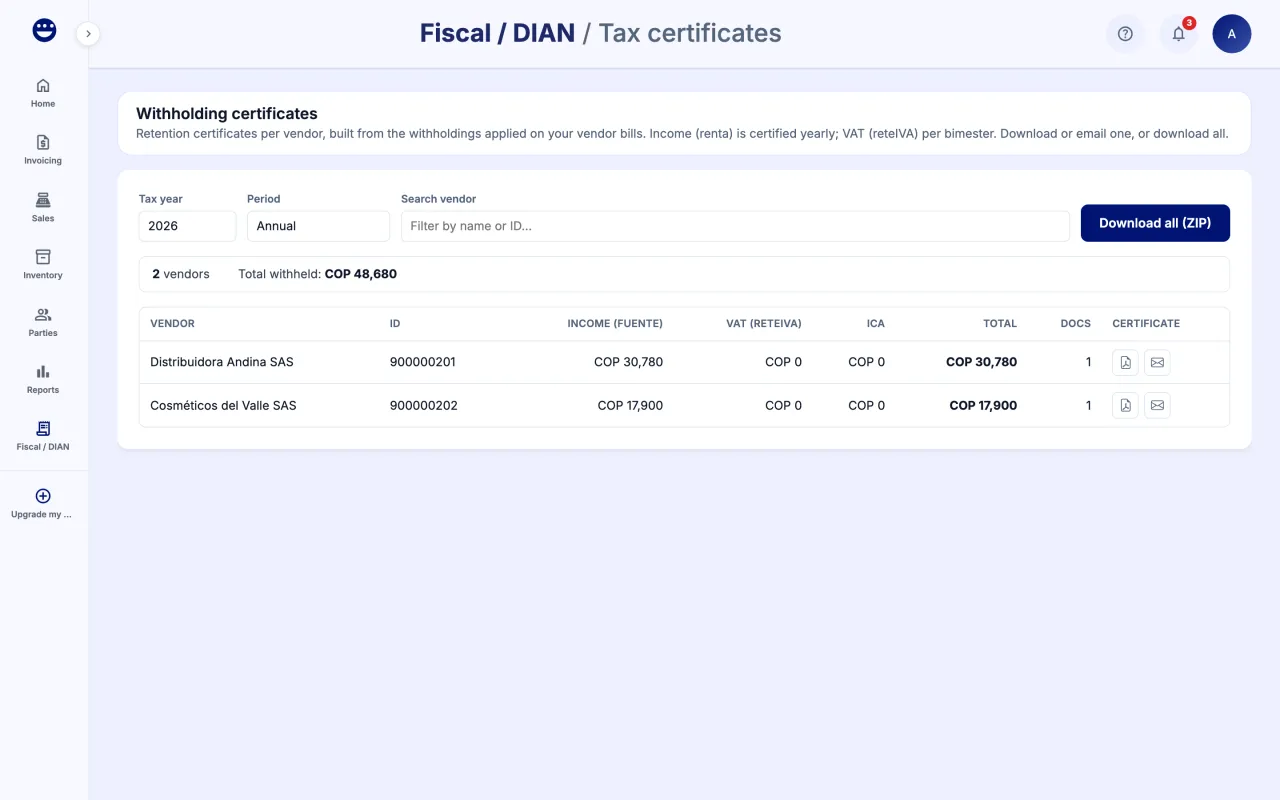
- Open Fiscal / DIAN > Tax certificates.
- Pick the "Tax year" and the "Period": "Annual" or a bimester.
- Search a party in "Search vendor" if you want one in particular.
- Click "Download PDF" on the party's row, or "Email" to send it to them.
- For all of them at once, use "Download all (ZIP)".
Certificates are built from the withholdings applied on your purchase invoices.
Frequently asked questions
Where do I set up my resolution?
From Home, once your DIAN connection is confirmed, with "Link resolution". On this screen, "Invoice Numbering" shows your resolutions and "DIAN Documents" the documents already sent.
A document shows "Rejected"
Open the invoice in Invoicing > Invoices: the detail shows why it was rejected. Fix the cause and use "Retry submission".