Manual modules
When you see it
Available in every POSYMA, depending on your role's permissions.
Guide 1 of 4How to create a customer
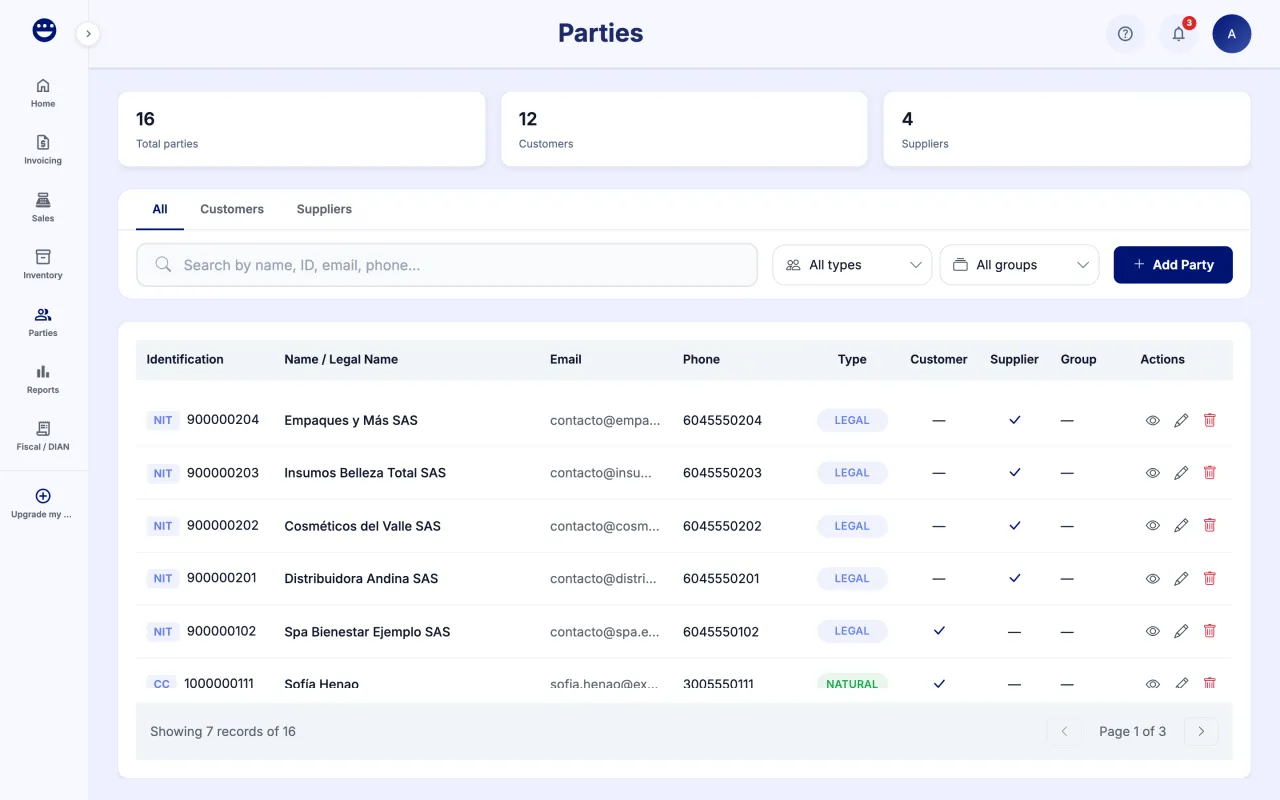
- Open Parties and click "Add Party".
- Choose how to create it: "Manual" or "From RUT". From RUT, upload the customer's PDF and POSYMA fills in identity, address and tax responsibilities.
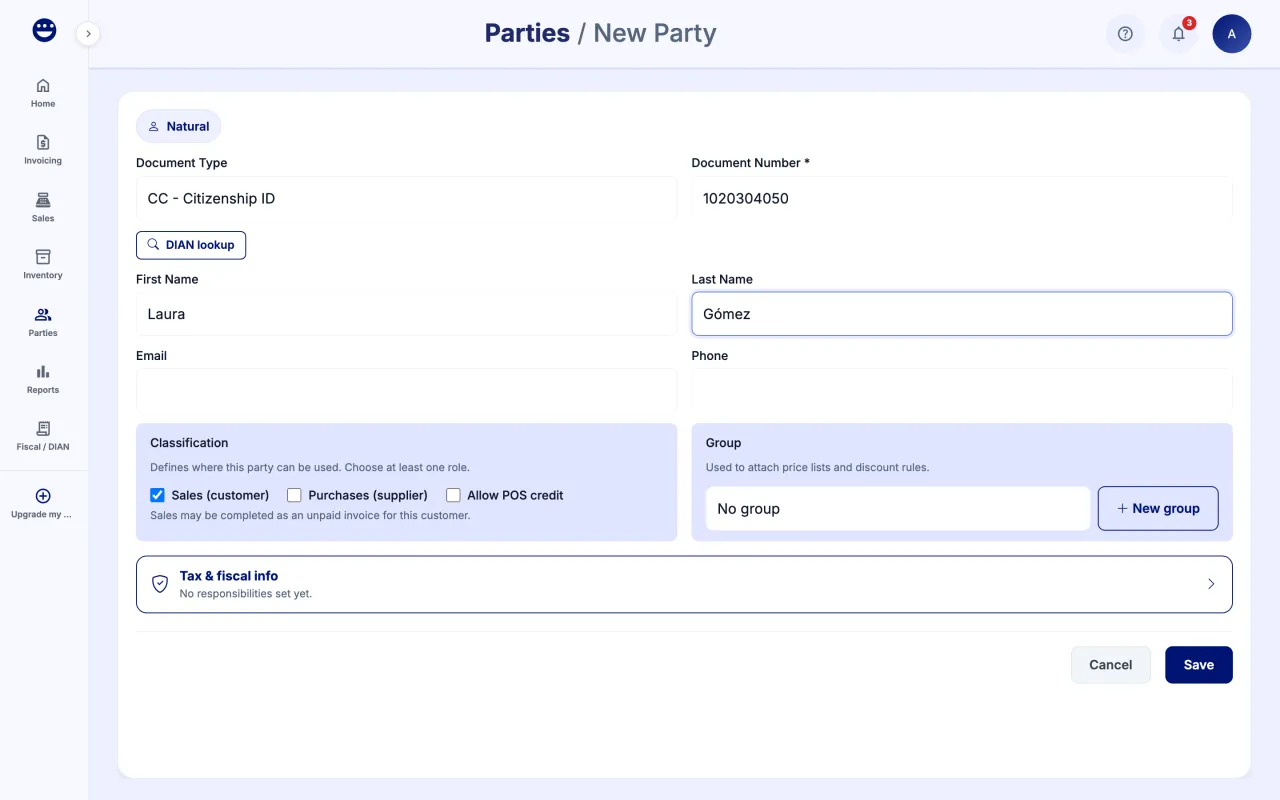
- If manual, pick "Natural Person" or "Legal Entity".
- Fill in "Document Type" and "Document Number". "DIAN lookup" fills the empty fields with the data the DIAN has for that document.
- Type the email and phone. The address is optional; if you add it, include the department and city.
- Under "Classification" keep "Sales (customer)" ticked and save.
If the document already exists, POSYMA warns you and offers "Open that party" instead of duplicating it.
Guide 2 of 4How to create a supplier
- Open Parties, "Suppliers" tab, and click "Add Party". The form opens with "Purchases (supplier)" already ticked.
- Fill in the details as you would for a customer.
- Under "Classification" check that "Purchases (supplier)" is ticked. If you also sell to them, tick "Sales (customer)".
- Save.
Guide 3 of 4How to enable credit and tax details for a customer
- Open the customer with the edit button.
- Under "Classification", tick "Allow POS credit" if you will sell to them on credit.
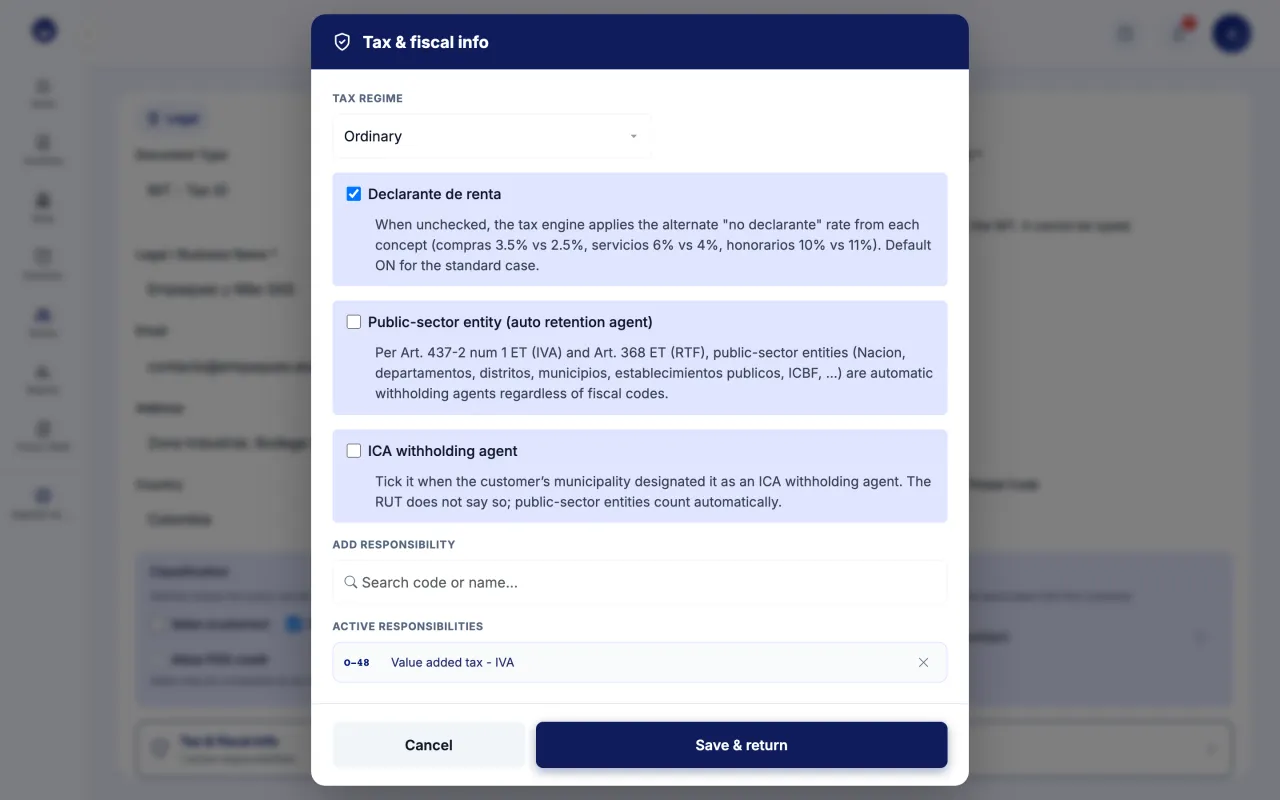
- Click "Tax & fiscal info" to set the "Tax regime" and the "DIAN fiscal responsibilities", or use "Upload RUT (PDF)" to load them from the RUT.
- Tick "Declarante de renta" and "ICA withholding agent" if they apply, and click "Save & return".
- Save the customer.
These details decide the withholdings and IVA on the invoices you issue them. If the customer was created from a RUT, their identity and tax details are locked; to change them, upload a new RUT.
Guide 4 of 4How to add contacts and assign a group
- Open the party with the edit button.
- In the "Contacts" section, click "Add Contact". This section only shows for a Legal Entity.
- Type the name, email, phone, position and department, and save the contact.
- For the group, pick a "Group" in the same form or create one with "New group".
- Save the party. Groups let you assign price lists to several customers at once.
Frequently asked questions
Where are Customers and Suppliers?
Both live in Parties. Use the summary cards ("All", "Customers", "Suppliers") to see only one kind.
What is "Walk-in Customer"?
It is the customer used when a sale is not made out to a specific person or company.
Can I upload a photo of the customer's RUT?
No. POSYMA needs the PDF downloaded from the DIAN website. If you upload a photo or a scan, it asks for the original file.