Manual modules
Where it is
Account menu › Bring my data. Also from the "Coming from another system?" notice on Home.
Open in your POSYMA
When you see it
Available in every POSYMA. Only the owner or an administrator can import.
Guide 1 of 3How to upload your files
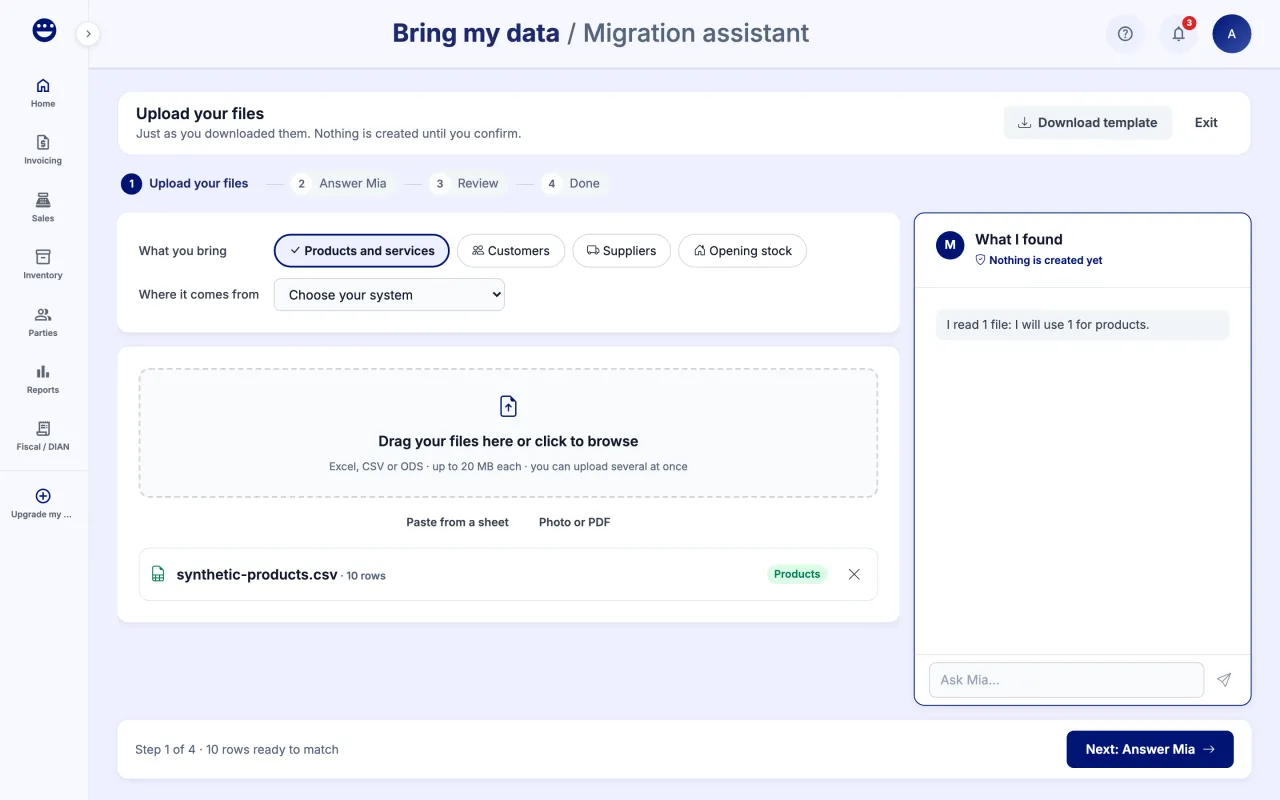
- Open the account menu and click "Bring my data".
- Under "What you bring", tick what you will import: "Products and services", "Customers", "Suppliers" or "Opening stock".
- Under "Where it comes from", choose "Excel or CSV file", "Photo or PDF of your list" or "Copy and paste".
- Drag your files in or click to browse. If the workbook has several sheets, pick the "Sheet to import".
- Check "This is how your file looks" and click "Next".
If you do not have a file at hand, use "Download template" and fill it in.
Guide 2 of 3How to answer Mia and review before importing
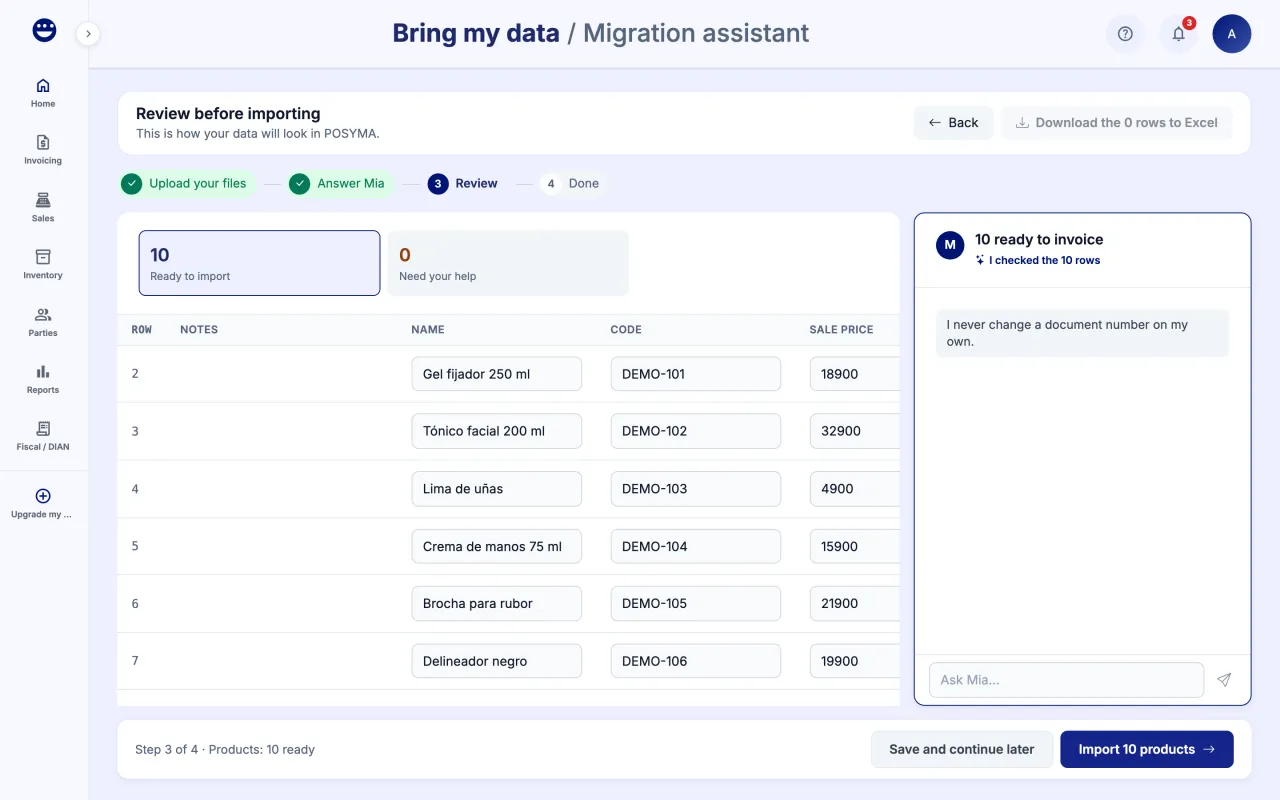
- In "Answer Mia", reply to the questions about your columns, VAT rates, units and categories. If a guess is right, click "Yes, that is right".
- In "Review before importing", go through the tabs: "Ready to import", "Mia fixed", "Need your help" and "Skipped".
- Fix the rows under "Need your help", one at a time or all with "Fix them all at once".
- Click "Import" (the button says how much you will import).
- To finish later, use "Save and continue later". Next time you will see "You have an unfinished import" with a "Continue" button.
If your POSYMA has a product limit and your file goes over it, you can "Import only the first" ones and bring the rest when you upgrade.
Guide 3 of 3How to undo an import
- When it finishes, the "You can now sell and invoice with your data" screen shows the result and next steps.
- If something did not turn out as expected, click "Undo import".
- Confirm. The products, categories, opening stock and parties created by that import are removed.
You can only undo while you have not sold or invoiced with that data. Every import is recorded in the audit log with who made it and what it created.
Frequently asked questions
Do I need to tidy up my spreadsheet first?
No. Upload it exactly as you downloaded it from your previous system. Mia recognizes the columns and only asks what she cannot know.
What happens to products that already exist?
POSYMA marks them as "Already in POSYMA" in the review and does not duplicate them.